Help › Compliance register
Compliance register
The compliance register lists what the building and the RTM company must check, test and renew, from the fire risk assessment and lift examinations to insurance and Companies House filings. Each item shows how often it’s due, when it was last done, when it’s next due, the contractor and the latest certificate.
The register
Go to Compliance › Register.
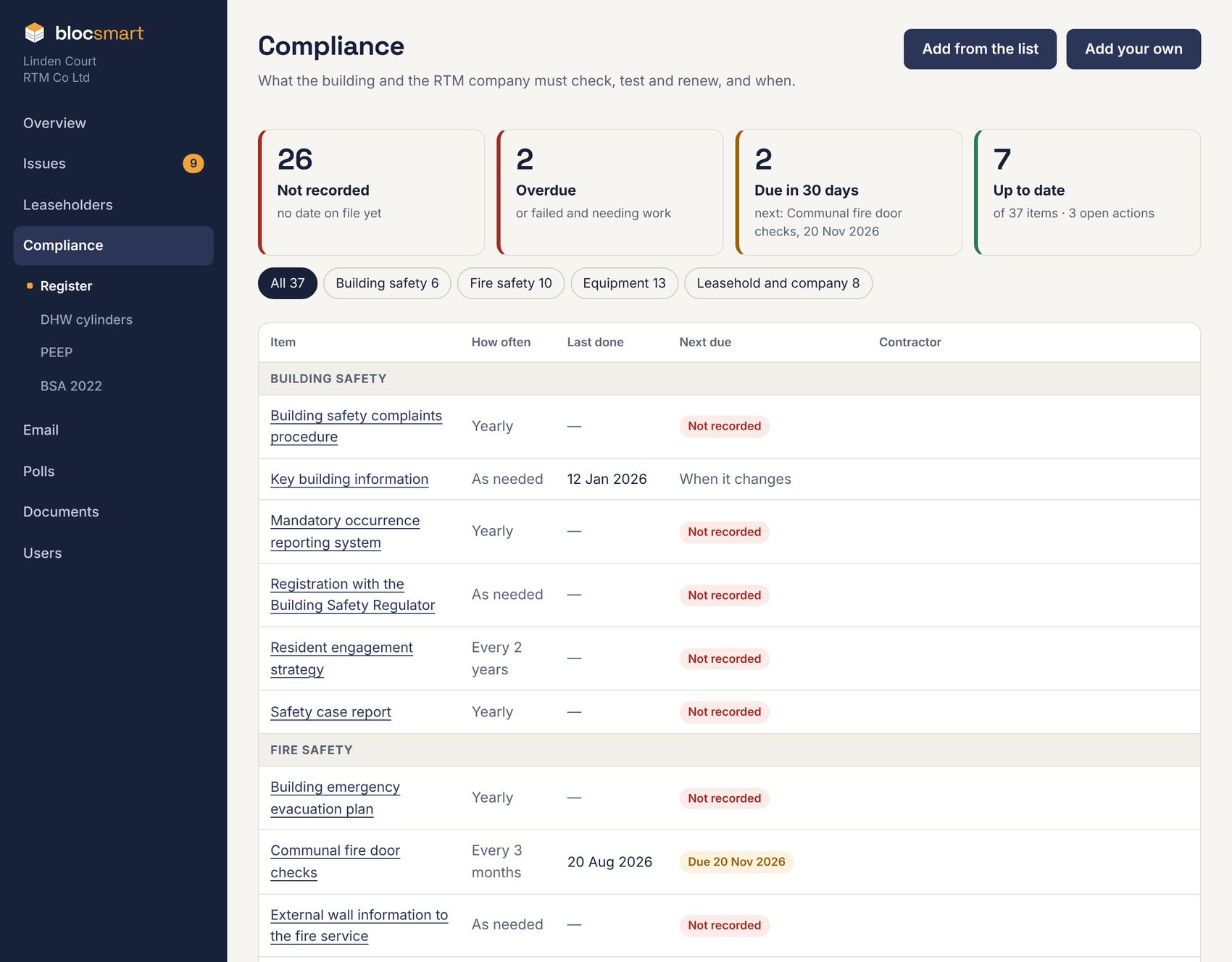
The tiles at the top run from least to most compliant. Click one to list just those items; click an area (Building safety, Fire safety, Equipment, Leasehold and company) to show one area.
| Tile or status | Meaning |
|---|---|
| Not recorded | No check recorded yet, and no due date set. |
| Overdue | Past its due date, or the last check failed and needs work. |
| Due | Due within the next 30 days. |
| Up to date | Done, and not due for more than 30 days. |
| When it changes | An “as needed” item, such as key building information, with no fixed frequency. |
An item is next due its frequency (for example 12 months) after its last check, unless you’ve set a due date by hand. Items due within 30 days also appear on the Overview (see Recent issues and what’s due).
Setting up the register
The first time, the register is empty. blocsmart suggests what to track from a few questions about the building.
- Press Set up compliance (or Add from the list at the top of the register).
- Under About the building, tick what applies: 18m or more (a higher-risk building), over 11m tall, lifts, a firefighting lift, dry or wet risers, smoke vents, sprinklers, a communal gas supply, built before 2000 (asbestos), lightning protection.
- Press Update the suggestions. The list on the right ticks the items that apply, with how often each is due.
- Untick anything you don’t want to track, and press Add the ticked items.
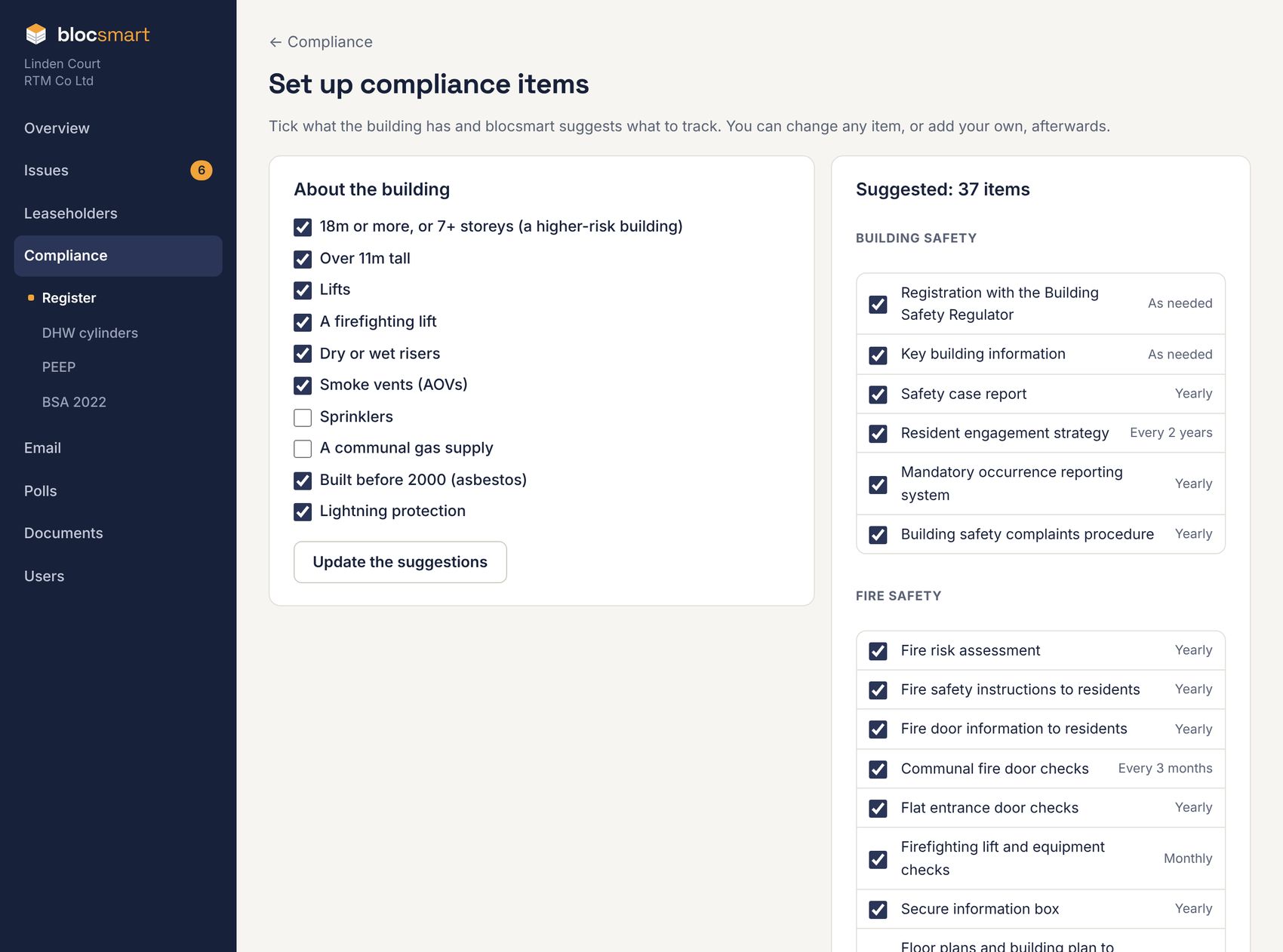
You can come back to Add from the list at any time; items you already track aren’t offered again.
Recording a check
- Open the item and press Record a check.
- Enter the Date done and the Contractor.
- Choose the Result: Pass; Pass with actions (passed, with things to fix); Fail (needs urgent work); or Done (for tasks with no pass or fail, such as a renewal or a filing).
- Under Actions, list anything that needs doing, one per line. Each line becomes an issue linked to this item (urgent, if the check failed).
- Drag the certificate or report onto the box, or click to choose it (PDF or photo, up to 25 MB).
- Add any notes. The Next due date underneath updates as you change the date.
- Press Save.
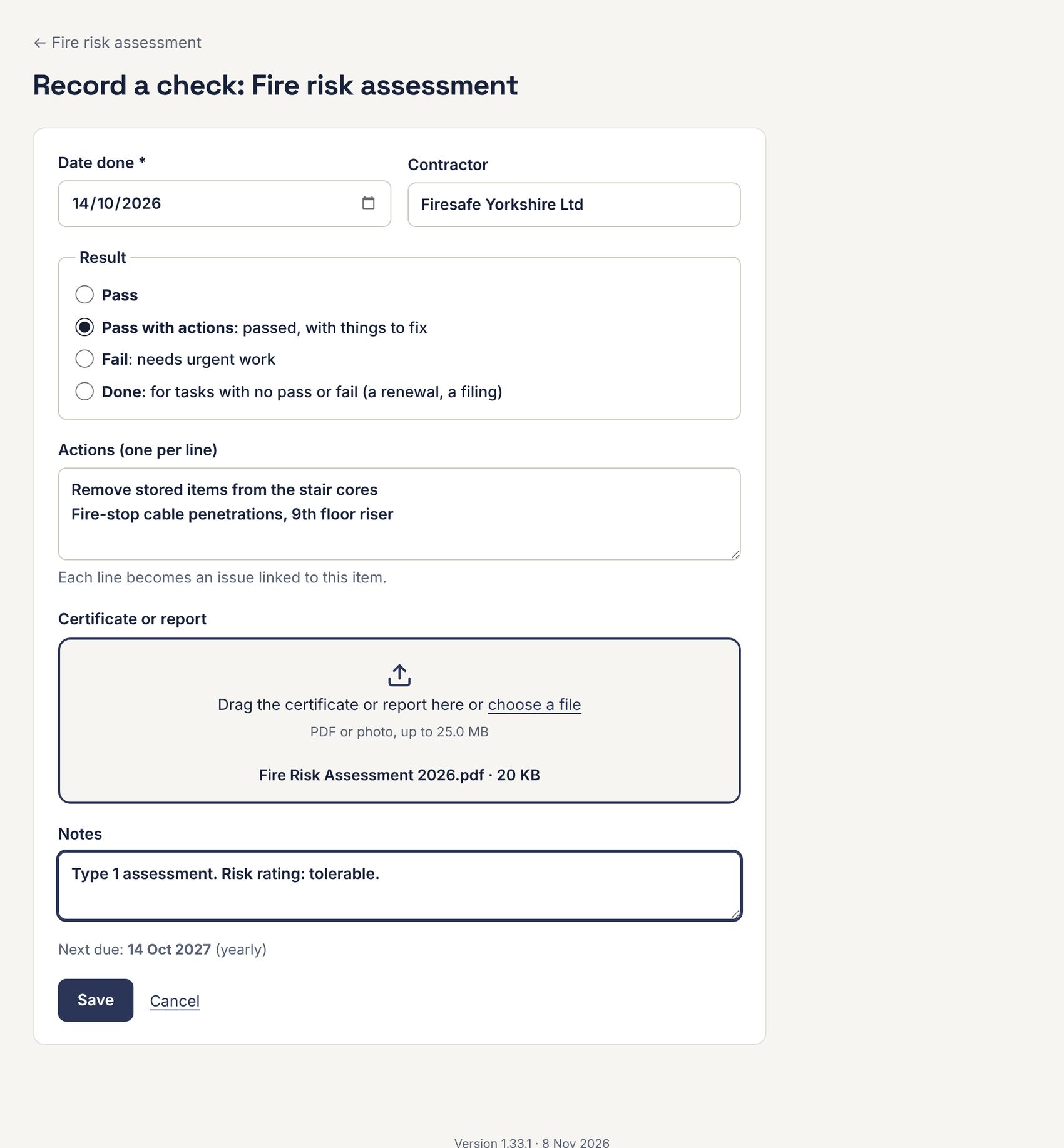
Recording a check clears any due date set by hand, so the next due date is worked out from the check.
An item’s page
Click an item in the register to open it.
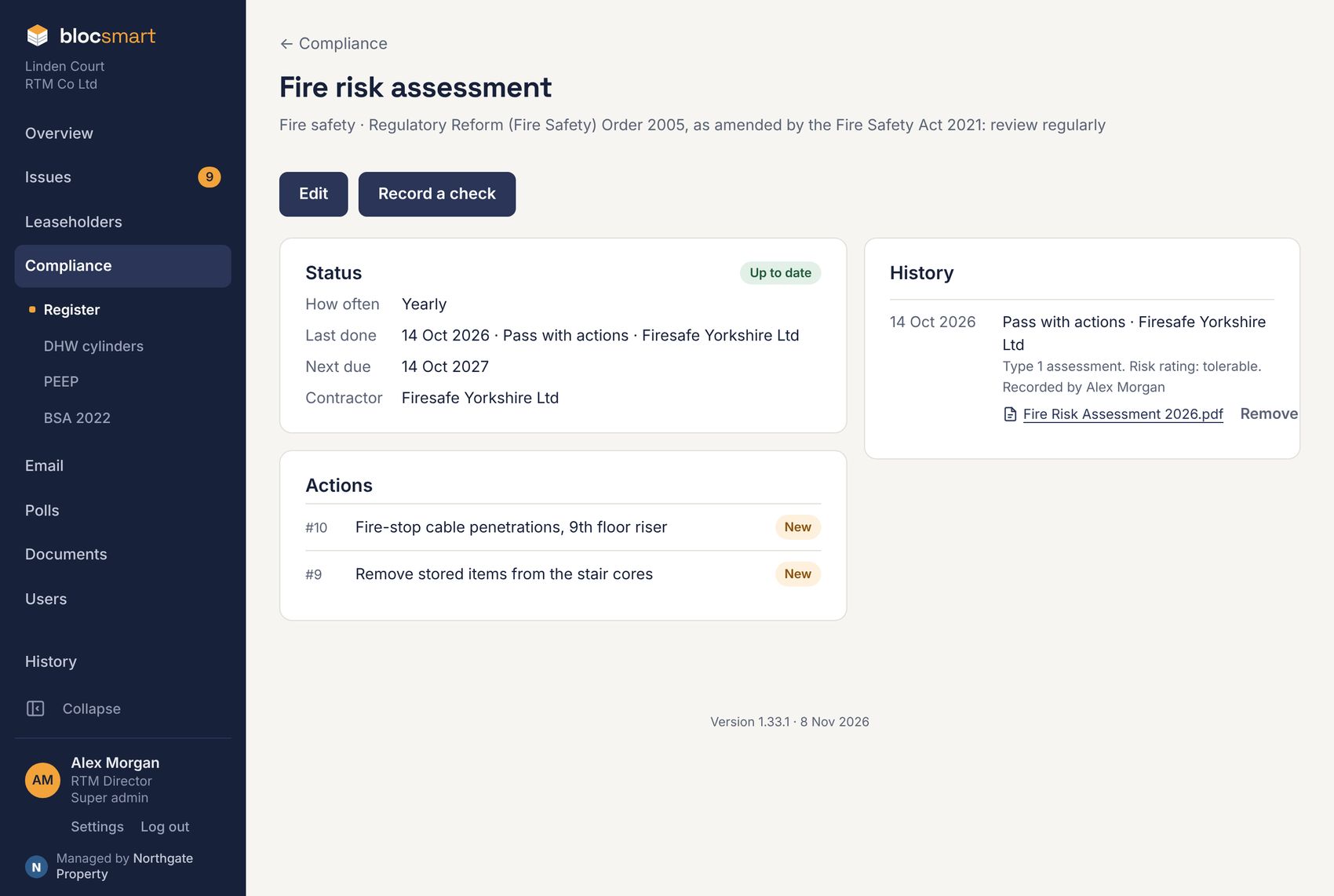
- Status shows how often it’s due, the last check, when it’s next due and the contractor.
- Actions lists the issues raised from its checks, with their status. Click one to open the issue.
- History lists every check, newest first, with its certificate. Press Remove to take a check off the history; its file is kept for 30 days.
Your own items, editing and stopping tracking
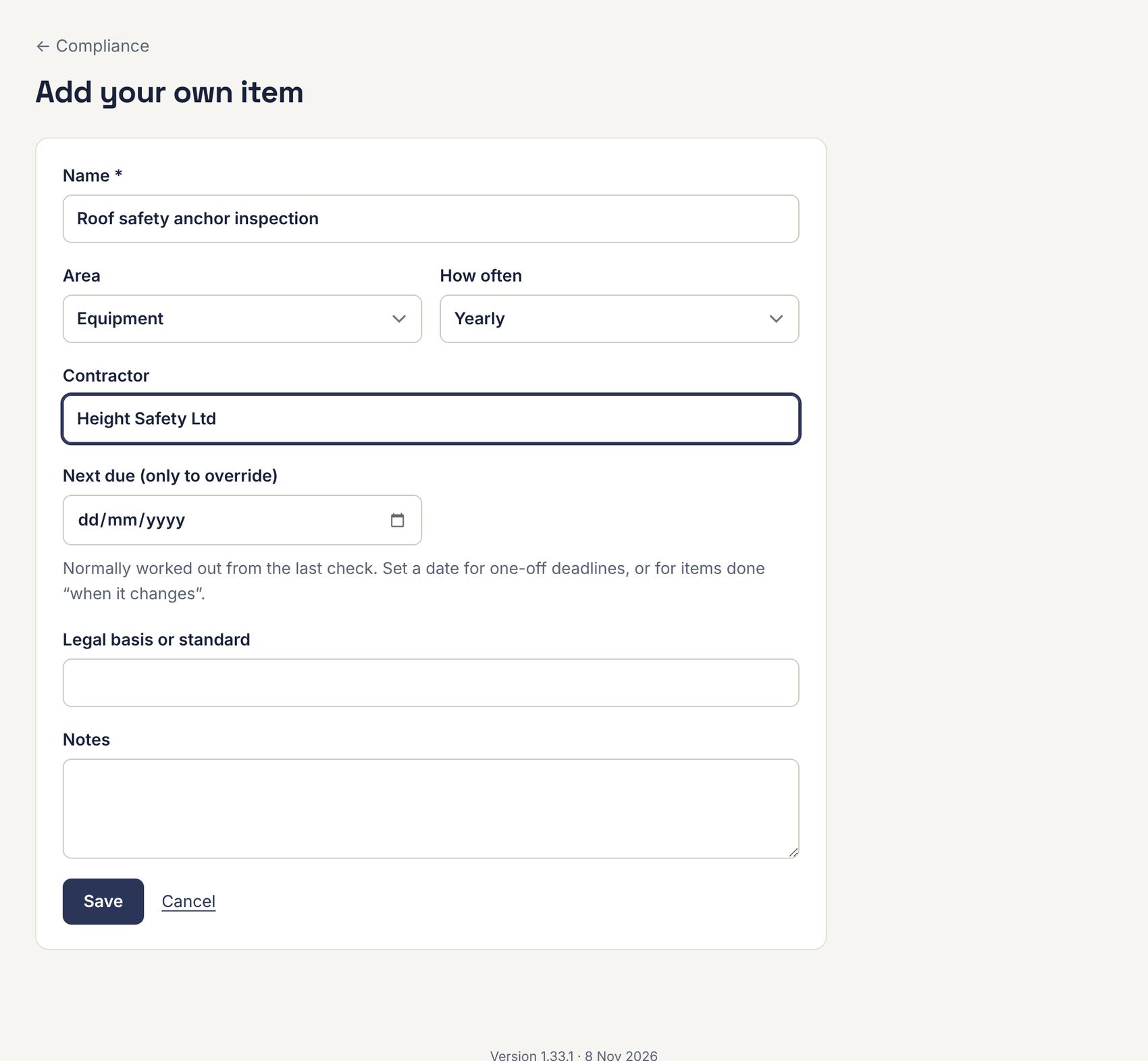
- Press Add your own at the top of the register.
- Give it a name, choose its area and how often it’s due (or As needed), and add the contractor, the legal basis or standard, and notes if you like.
- To set a one-off deadline, enter Next due. Otherwise leave it blank and it’s worked out from the last check.
- Press Save.
Press Edit on any item’s page to change these details. To take an item off the register, press Edit, then Stop tracking. Its history is kept.