Help › Getting started
Getting started
blocsmart is a private website for running a block of flats, used by the directors of a right-to-manage (RTM) company and their managing agent: the leaseholder register, compliance (including hot water cylinders, evacuation plans and Building Safety Act protections), issues raised by residents, emails, polls, documents and who can log in. These pages explain every part of it.
Roles and what super admins can do
Everyone who logs in has a role, which says who they are. Your role is shown under your name at the bottom of the sidebar.
| Role | Who | Mentioned with |
|---|---|---|
| RTM Director | A director of the RTM company. | @directors |
| Property Manager | Staff at the managing agent. | @agent |
Everyone, whatever their role, can use every part of blocsmart: Overview, Issues, Leaseholders, Compliance, Email, Polls, Documents and History. One extra permission sits on top of the role:
| Permission | What it adds | Given by |
|---|---|---|
| Super admin | The Users section: adding people, changing roles, sending setup links and removing access (see Users). | A tick on the user’s page, set by another super admin. |
Leaseholders and tenants never log in. The only pages they see are the report-an-issue page (see How residents report issues), poll ballots (see How leaseholders vote) and the certificate upload page linked from a service reminder (see What leaseholders see). Those pages carry your building’s own look.
Logging in
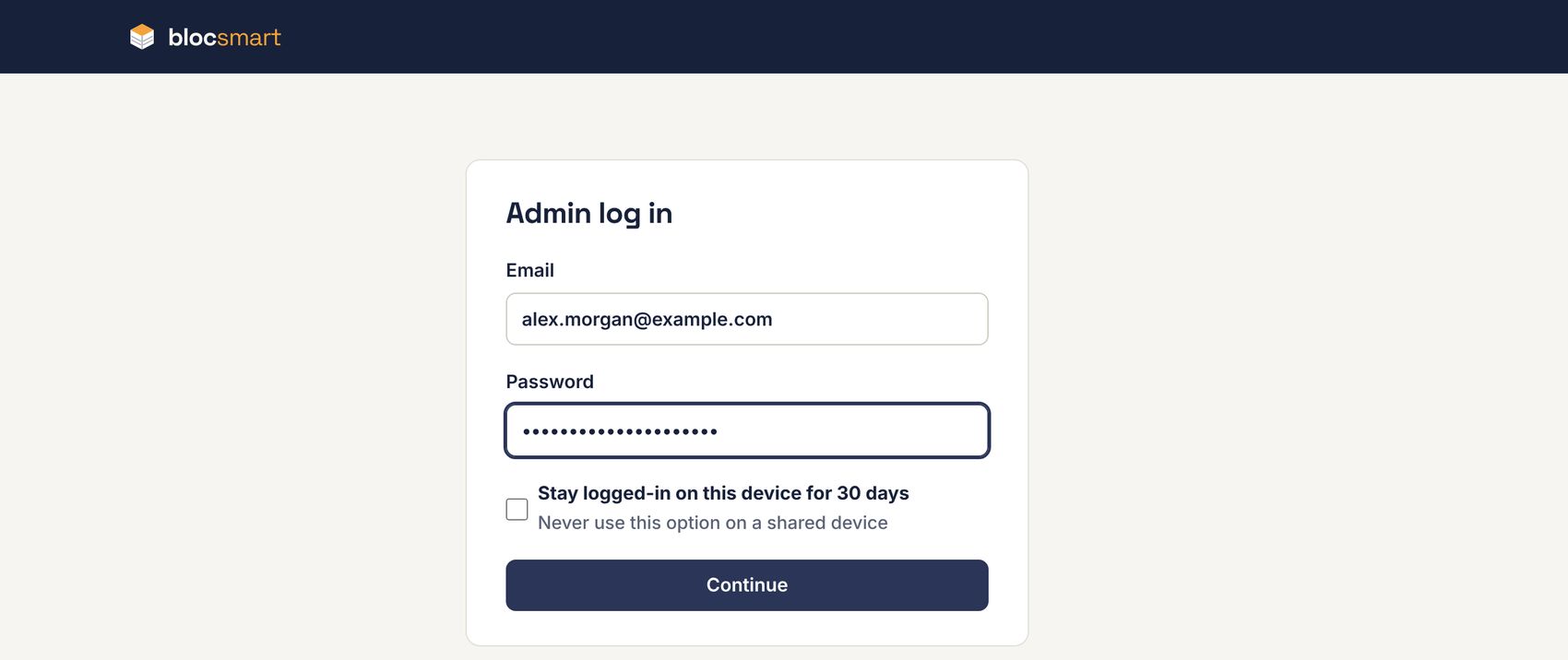
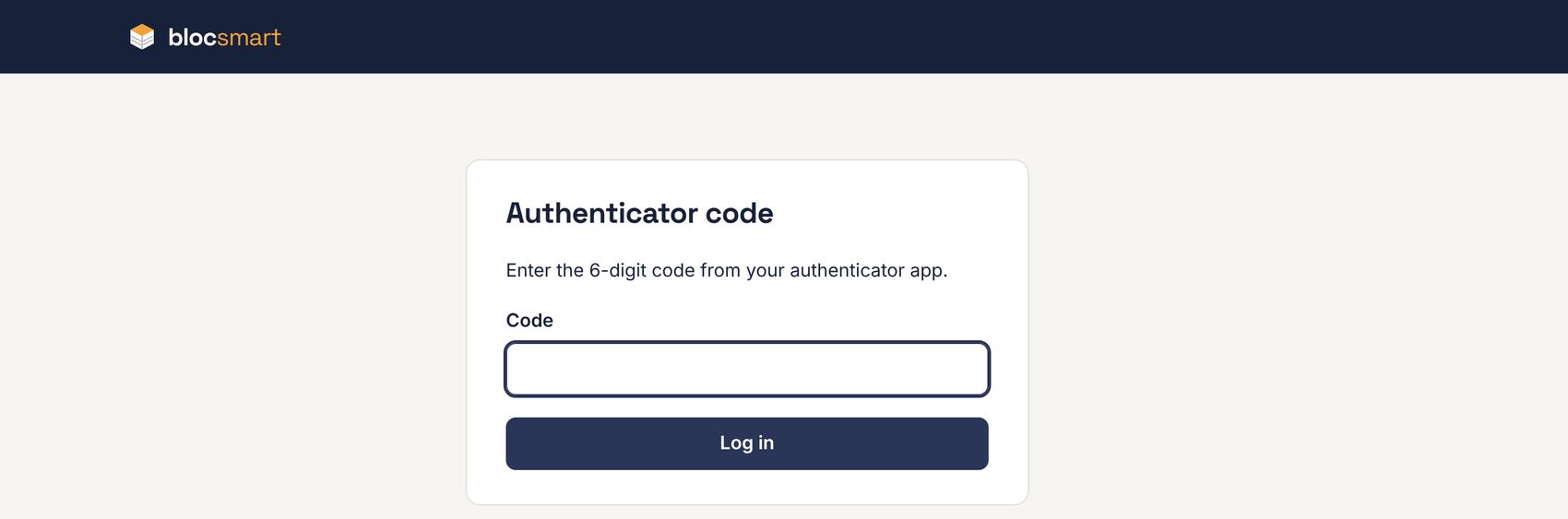
Your RTM company’s directors will give you your dashboard’s address. Logging in takes two steps: your password, then a 6-digit code from the authenticator app on your phone. Nobody can get in with your password alone.
- Go to the dashboard address. You’ll see Admin log in.
- Enter your email address and password.
- On your own computer or phone, you can tick Stay logged-in on this device for 30 days. Never tick it on a shared device.
- Press Continue.
- Open the authenticator app on your phone (for example Google Authenticator, Microsoft Authenticator or 1Password), type the 6-digit code it shows and press Log in. The code changes every 30 seconds; if it’s about to change, wait for the next one.
You land on the Overview (see Overview). If you followed a link to a particular page, you’re taken there instead.
Without the 30-day tick, a login lasts up to 12 hours. On a shared computer, always press Log out (under your name in the sidebar) when you’ve finished.
After several wrong passwords, blocsmart pauses login attempts for a while to keep the account safe. Wait 15 minutes and try again, or ask a super admin for a new setup link (see Changing a user, or resetting their login).
Setting up your account from a setup link
New users, and anyone who has lost their phone or forgotten their password, are emailed a setup link by a super admin. It works once and lasts 72 hours.
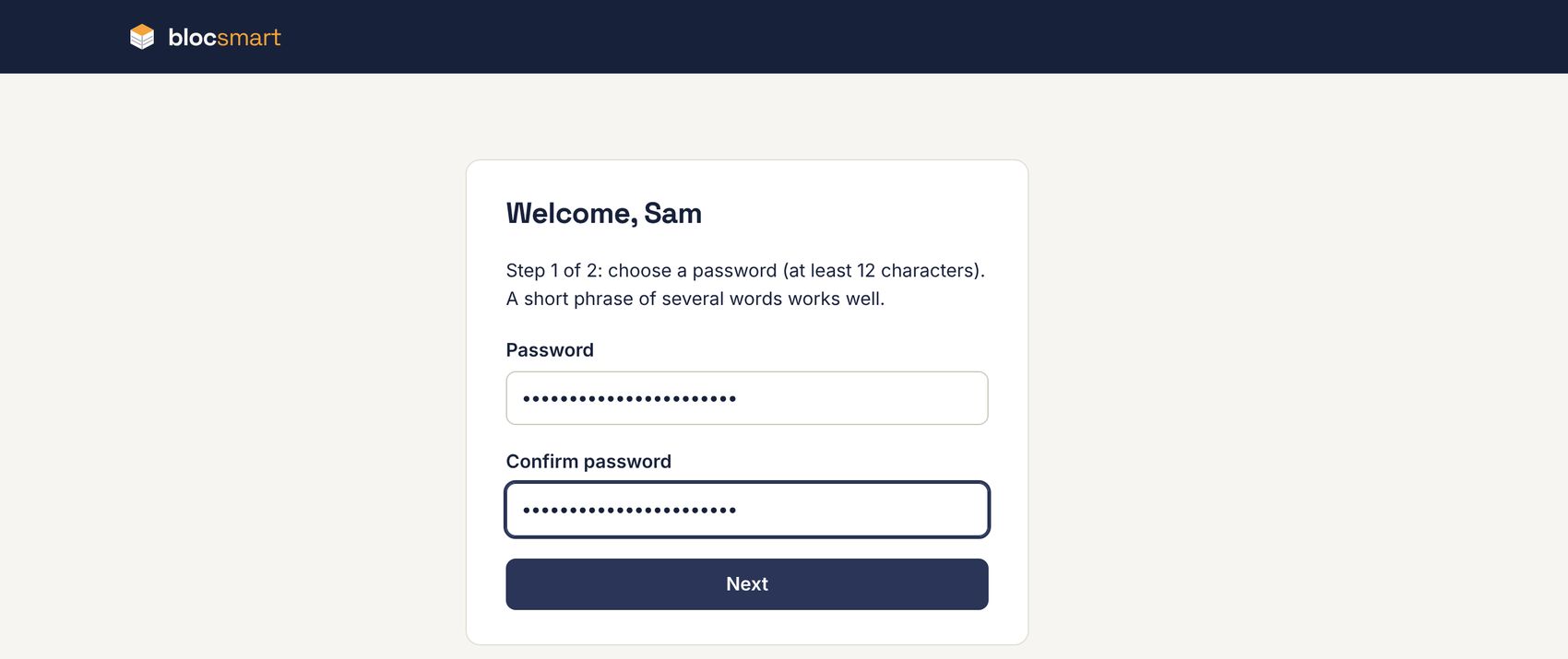
- Open the link in the email. You’ll see Welcome with your name.
- Choose a password of at least 12 characters and type it twice. A short phrase of several words works well. Press Next.
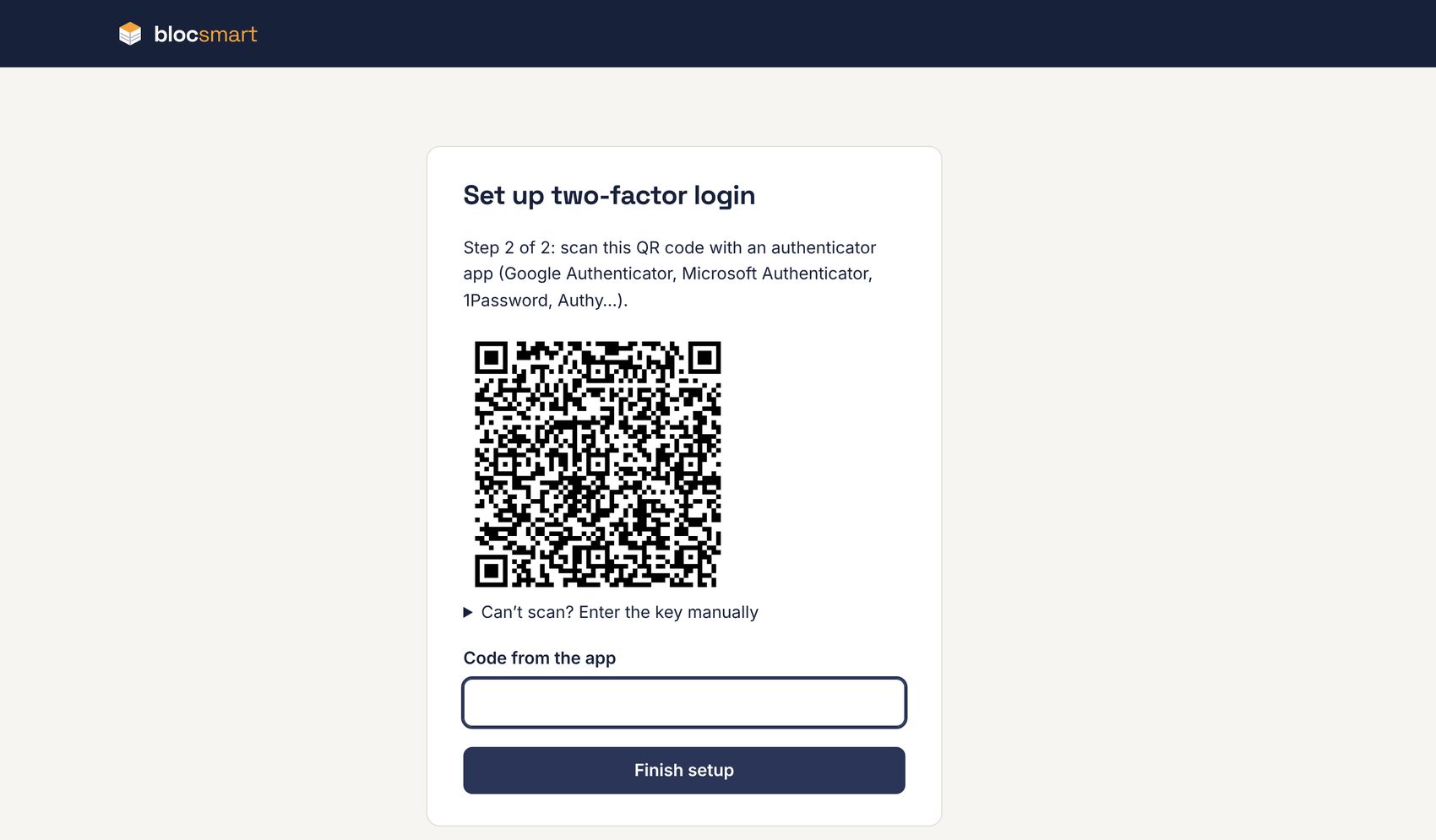
- Install an authenticator app on your phone if you don’t have one. In the app, choose to add an account and scan the QR code on screen. If you can’t scan it, open Can’t scan? Enter the key manually and type the key into the app instead.
- Type the 6-digit code the app now shows into Code from the app and press Finish setup.
- Log in as normal (see Logging in).
Finding your way around
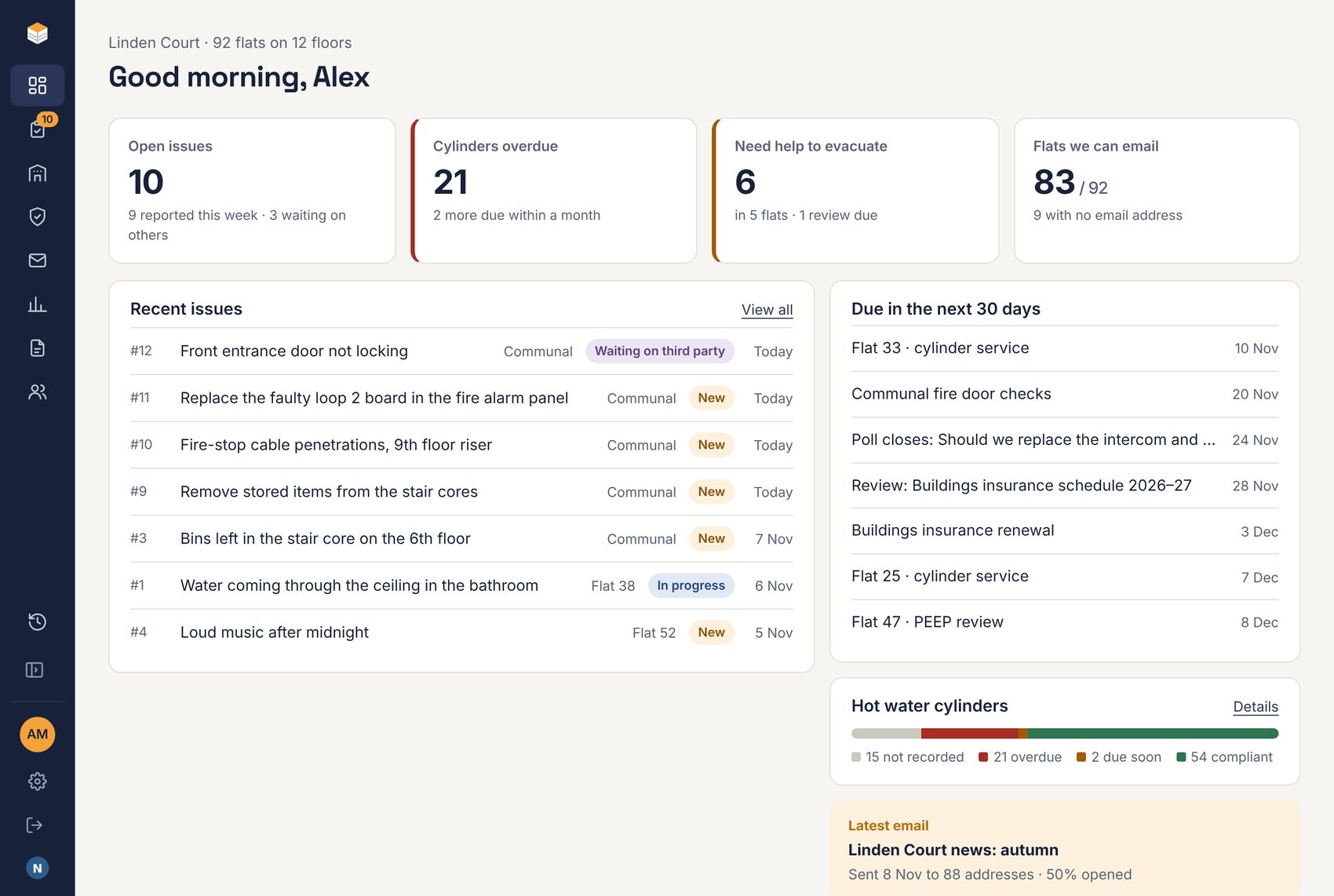
The dark sidebar on the left of every page holds the blocsmart name, the RTM company’s name, the sections, and at the bottom History, your name and role, Settings, Log out and the managing agent’s name. The number next to Issues is how many are open. When a section has more than one page, its pages are listed under it in the sidebar.
| Section | What it’s for | Chapter |
|---|---|---|
| Overview | Headline figures and what needs attention. | Overview |
| Issues | Matters raised by residents, on a list or a board. | Issues |
| Leaseholders | Every flat, its leaseholders and tenants (Leaseholders), and filed emails (Correspondence). | Leaseholders, tenants and flats, Correspondence and the email dropbox |
| Compliance | The compliance Register, DHW cylinders, PEEP (evacuation plans) and BSA 2022. | Compliance register and BSA 2022 leaseholder protections |
| Newsletters and company notices (Emails), automatic service Reminders and Templates. | Emails to leaseholders, Service reminders | |
| Polls | Online votes for leaseholders. | Polls |
| Documents | The shared library of minutes, certificates, reports and contracts. | Documents |
| Users | Who can log in (super admins only). | Users |
| History | Every change to the register, with undo, and a log of logins and activity. | History and change log |
Collapsing the sidebar
Press Collapse near the bottom of the sidebar to shrink it to a strip of icons, leaving more room for the page. Hover over an icon to see its name. Press the same button to expand it again. blocsmart remembers your choice on each device.
On a phone or narrow window
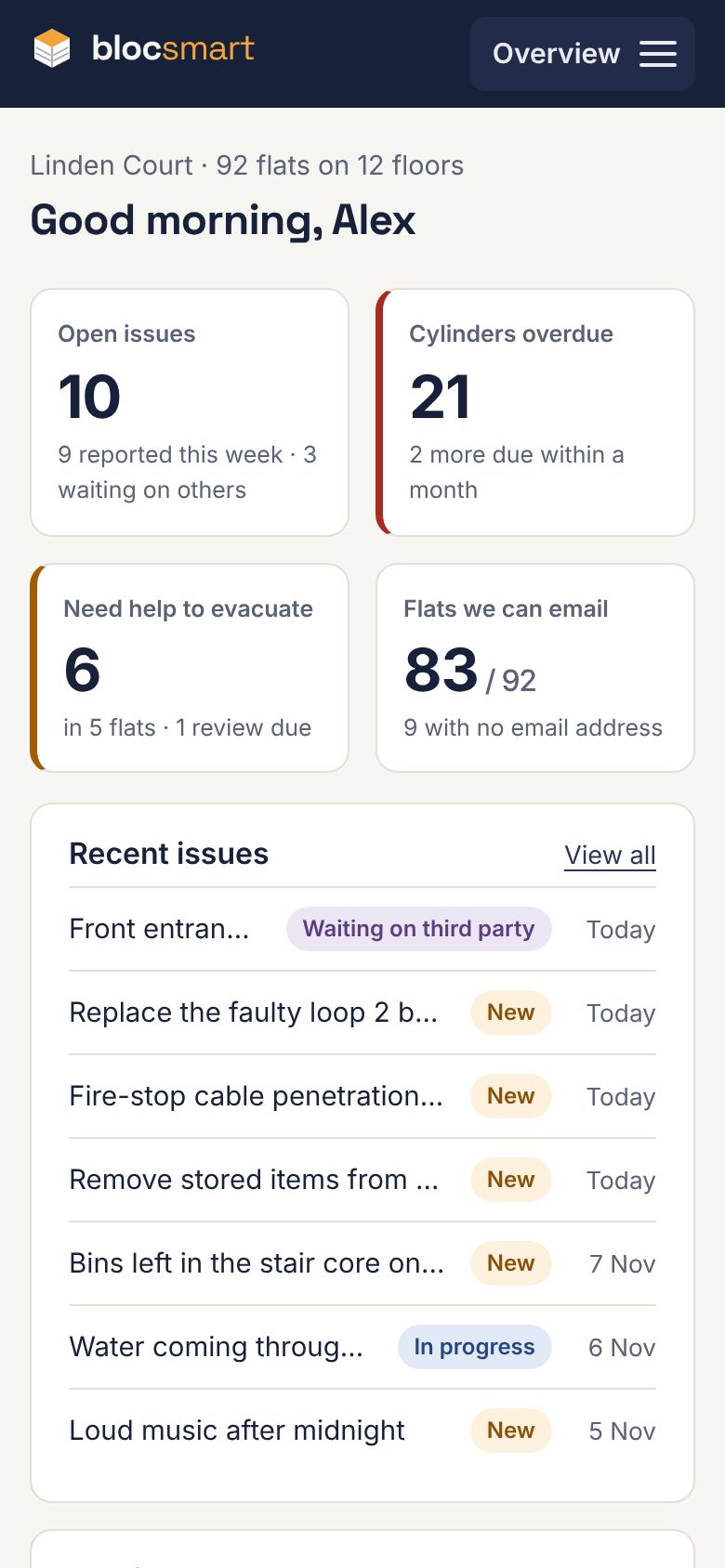
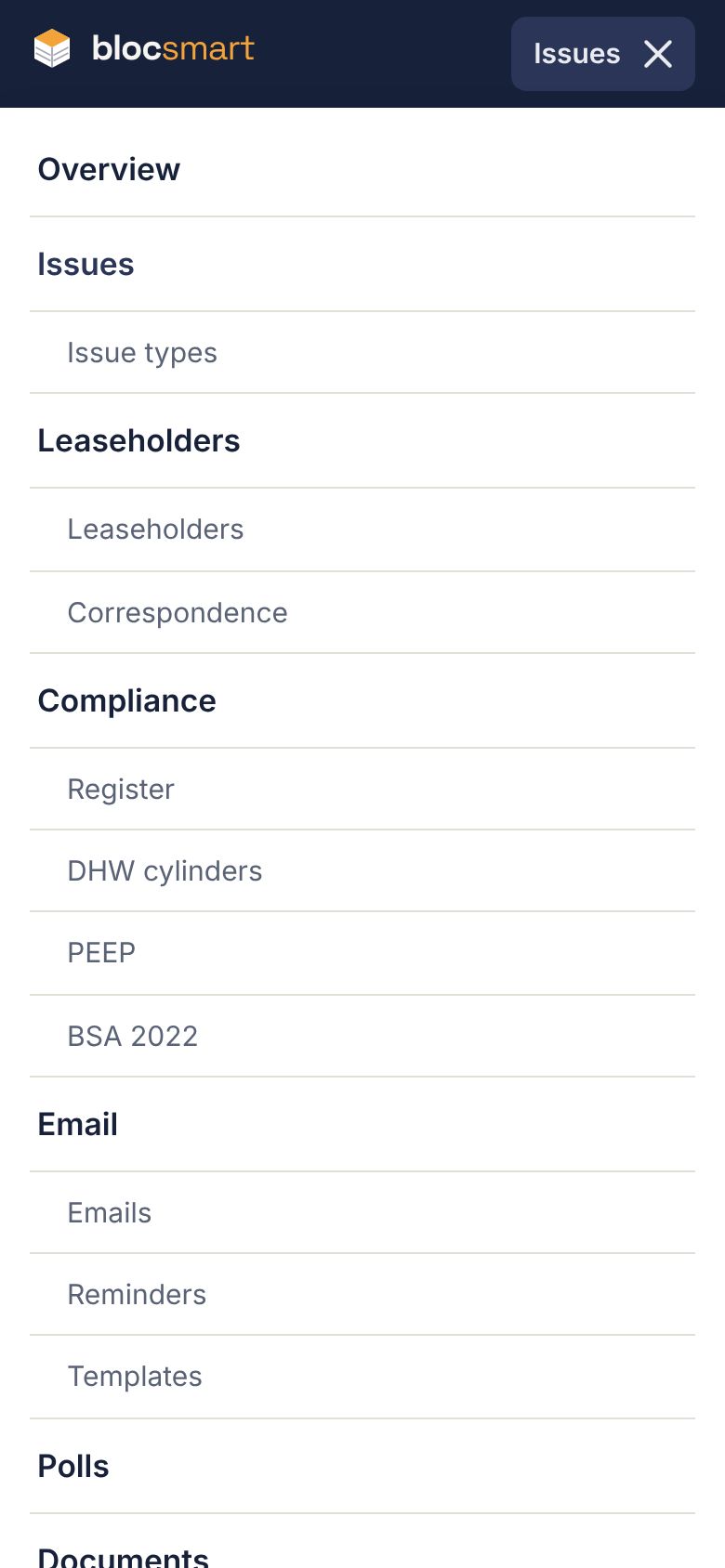
On phones and windows narrower than about 1200 pixels, the sidebar becomes a dark bar across the top. Tap the button with the section’s name and three lines to open the menu, which lists every section and its pages.
The version line
The foot of every page shows the version of blocsmart that’s running, for example Version 1.33.1. Click it to open the change log (see The change log). These pages describe version 1.33.1.
Your settings
Press Settings under your name in the sidebar.
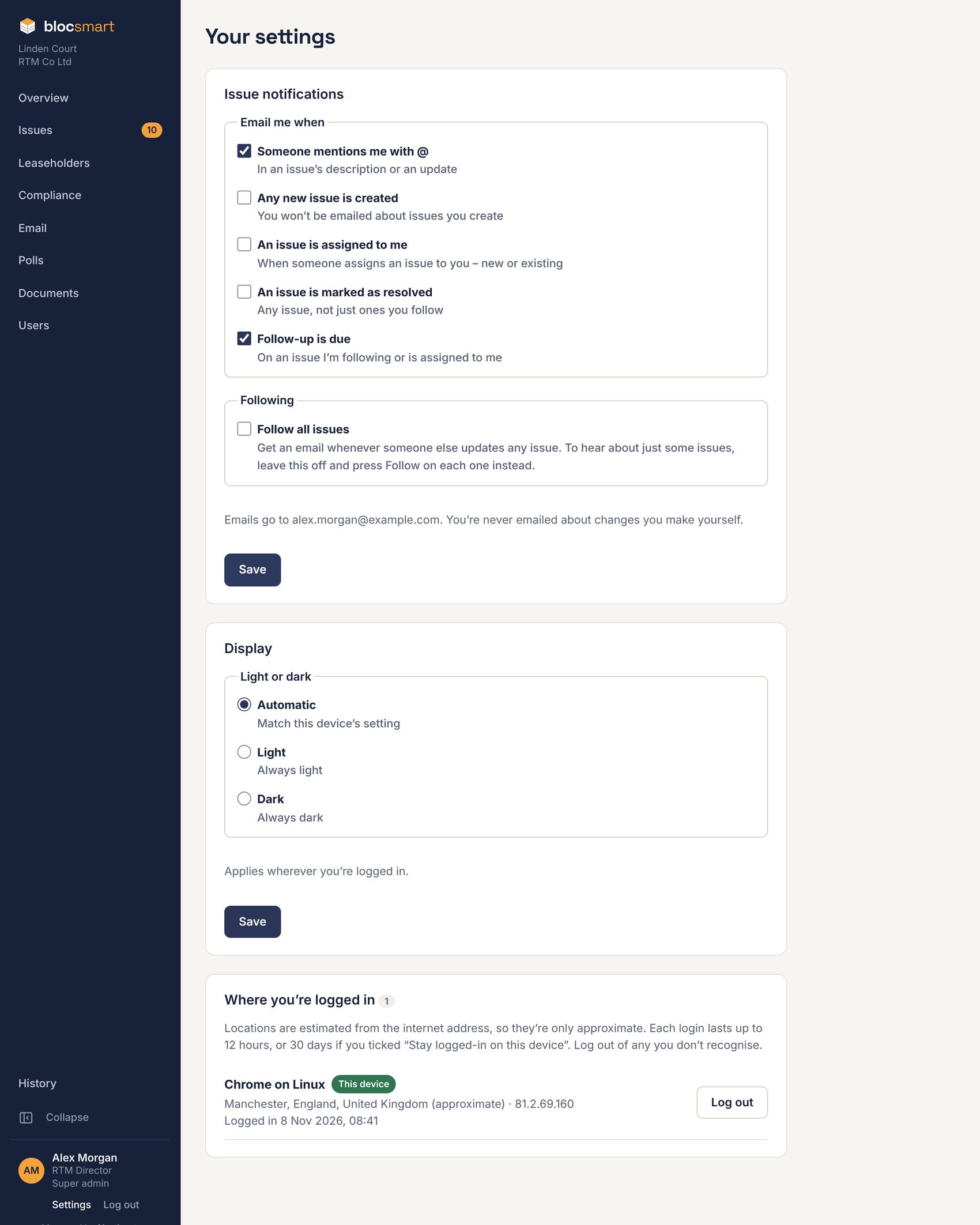
Issue notifications
Choose which issue emails you get. You’re never emailed about changes you make yourself.
| Email me when | What it means |
|---|---|
| Someone mentions me with @ | Someone types @ and your name (or @directors or @agent, if that’s your group) in an issue’s description or an update. On by default. |
| Any new issue is created | Every new issue, except ones you create. |
| An issue is assigned to me | Someone assigns an issue to you, new or existing. |
| An issue is marked as resolved | Any issue, not just ones you follow. |
| Follow-up is due | At 9am on the follow-up date of an open issue that’s assigned to you or that you follow. On by default. |
| Follow all issues | Get an email whenever someone else updates any issue. To hear about just some issues, leave this off and press Follow on each one (see Following, documents and emails). |
Display
Choose Automatic (match your device’s light or dark setting), Light or Dark, and press Save. It applies wherever you’re logged in.
Where you’re logged in
Lists every device logged in to your account, with an approximate location, when it logged in and when a 30-day login ends. Press Log out next to any you don’t recognise, or Log out everywhere else to end them all except this one.
New-login alert emails
Whenever your account logs in from a network it hasn’t been used from before (a new home broadband, a mobile network, a hotel), blocsmart emails you. This is normal when you’re somewhere new, but it’s also how you’d find out if someone else had your password and authenticator.
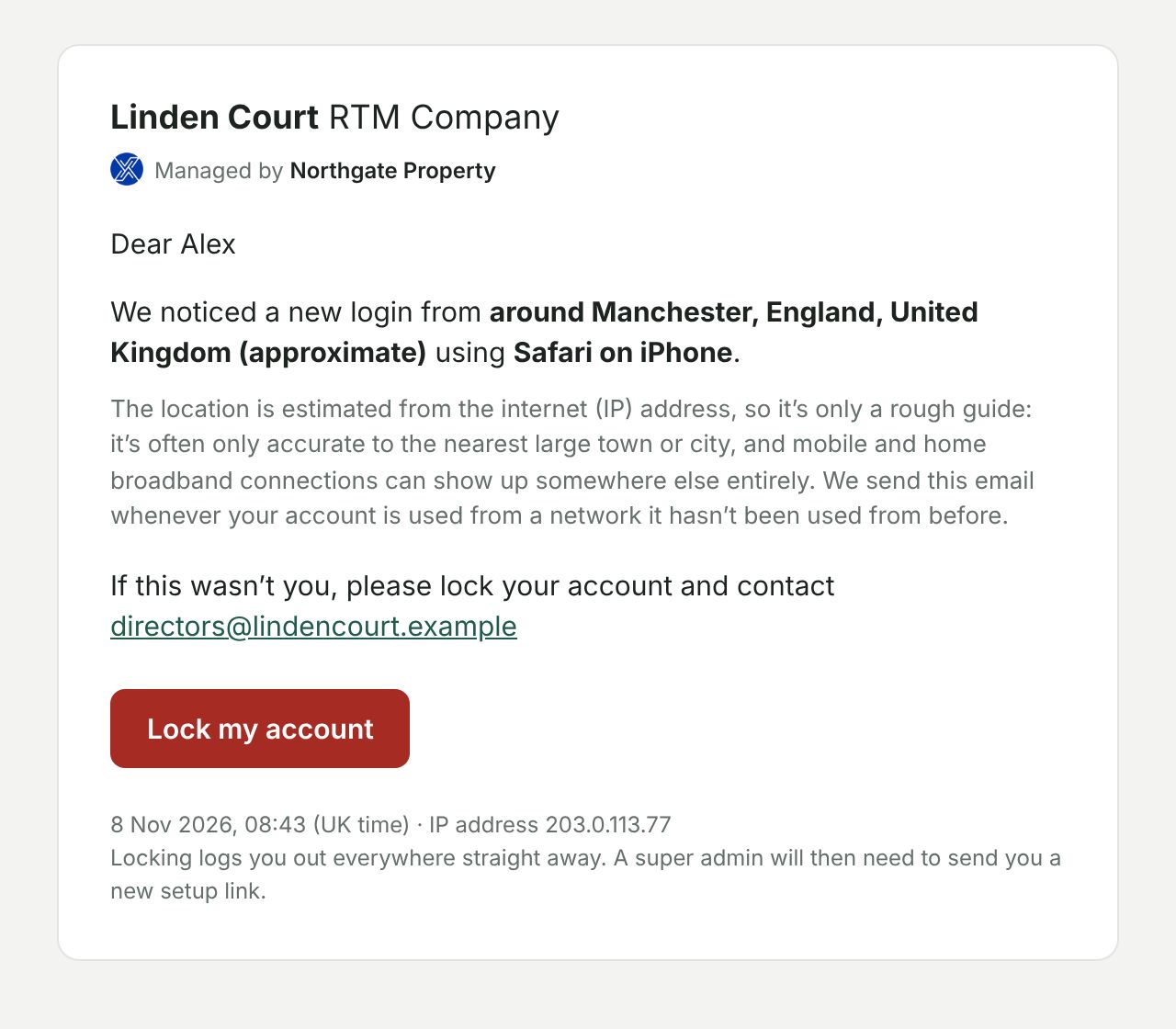
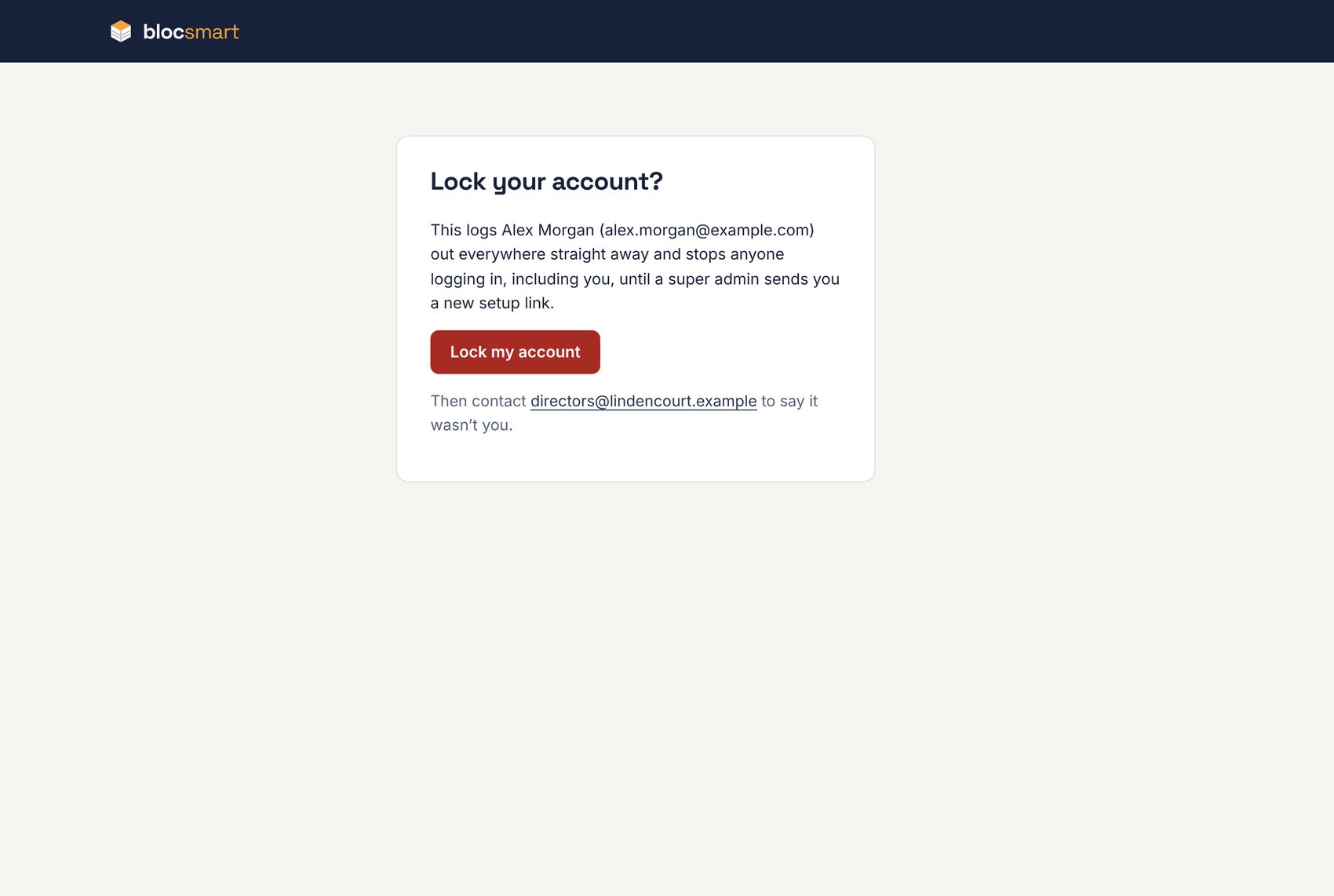
If it wasn’t you
- Press Lock my account in the email.
- On the page that opens, press Lock my account again. You’re logged out everywhere straight away, and nobody (including you) can log in.
- Tell your RTM company’s directors. A super admin can check the activity log (see Logins and activity) and send you a new setup link (see Changing a user, or resetting their login).