Help › Users
Users
Users controls who can log in to blocsmart. Only super admins see it. Logins are separate from leaseholder records: users never appear in the register or receive newsletters.
The users list
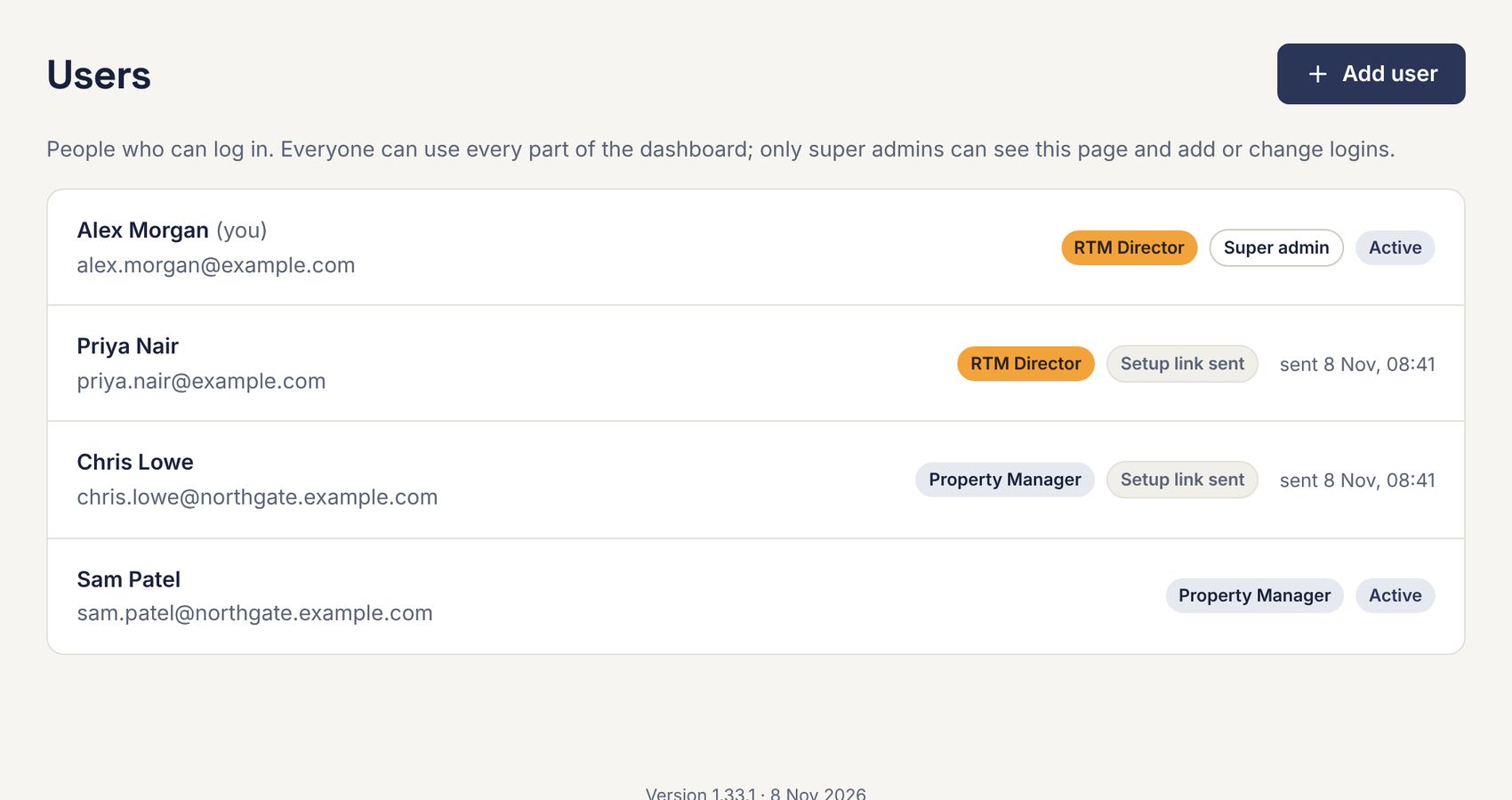
| Status | Meaning |
|---|---|
| Active | Password and authenticator are set up; they can log in. |
| Setup link sent | They’ve been emailed a setup link that hasn’t been used yet. The list shows when. |
| Not set up | Their setup link has expired without being used. Send them a new one. |
| Locked | The account was locked from a new-login alert (see New-login alert emails). |
Adding a user
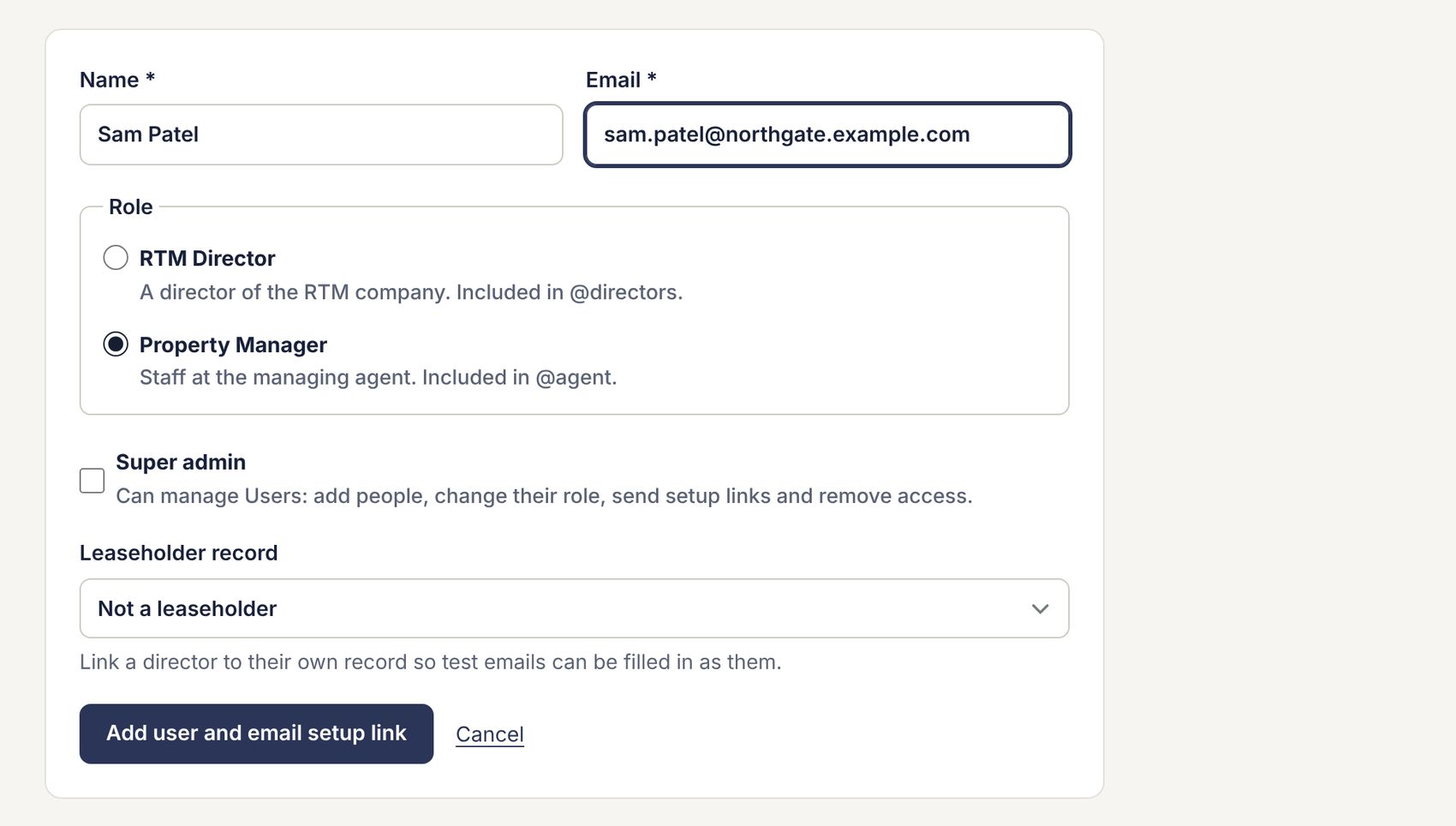
- Go to Users and press Add user.
- Enter their name and email address.
- Choose their role: RTM Director or Property Manager (see Roles and what super admins can do).
- Tick Super admin only if they need to manage users.
- If they’re a director who is also a leaseholder, you can link them to their own record under Leaseholder record, so test emails can be filled in as them.
- Press Add user and email setup link. They get a welcome email with their setup link, which works once and lasts 72 hours.
They then follow Setting up your account from a setup link. If the email can’t be sent, the link is shown for you to copy and send privately instead.
Changing a user, or resetting their login
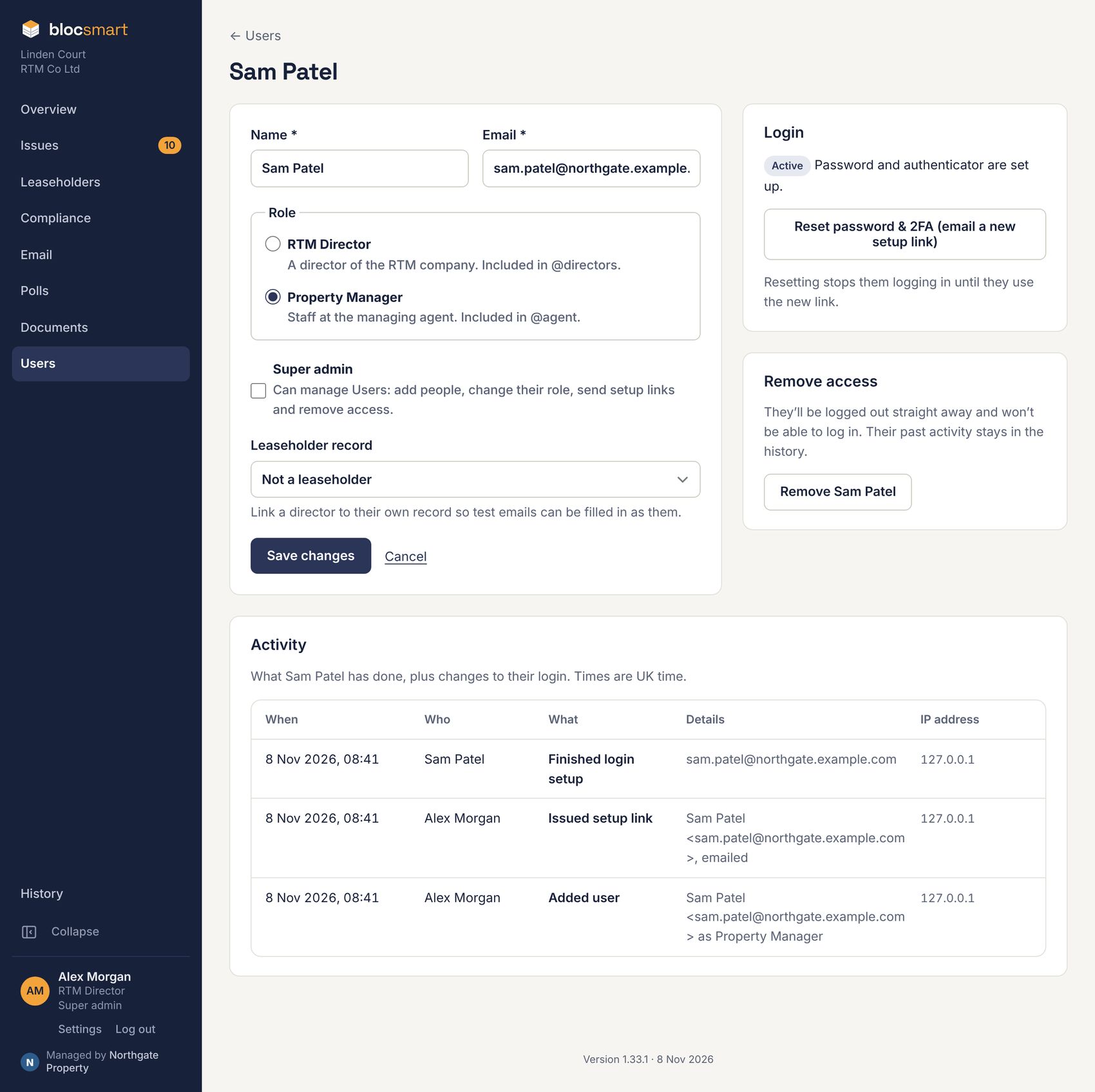
Click a user to open their page. Change their name, email, role, super admin tick or linked record, then press Save changes. Their activity is listed underneath.
If someone forgets their password, loses their phone, or locked their account:
- Open their page. For a locked account, check their activity, and Logins & activity (see Logins and activity), for anything you don’t recognise.
- Press Reset password & 2FA (email a new setup link). They can’t log in until they use it. The page shows when the link was sent and when it expires; press Send again to replace it.
You can’t remove your own super admin tick or your own access, so there is always at least one super admin.
Removing access
Open their page and press Remove followed by their name, under Remove access. They’re logged out straight away and can’t log in again. Their past activity stays in the history.