Help › Leaseholders, tenants and flats
Leaseholders, tenants and flats
Leaseholders is organised around the building’s flats and floors. Each flat can have any number of leaseholders (for example joint owners) and tenants, and keeps its own compliance records, emails and issues when it changes hands.
The leaseholders list
Go to Leaseholders. Every flat is listed with its floor, its leaseholder and their email address. Click a row to open the flat.
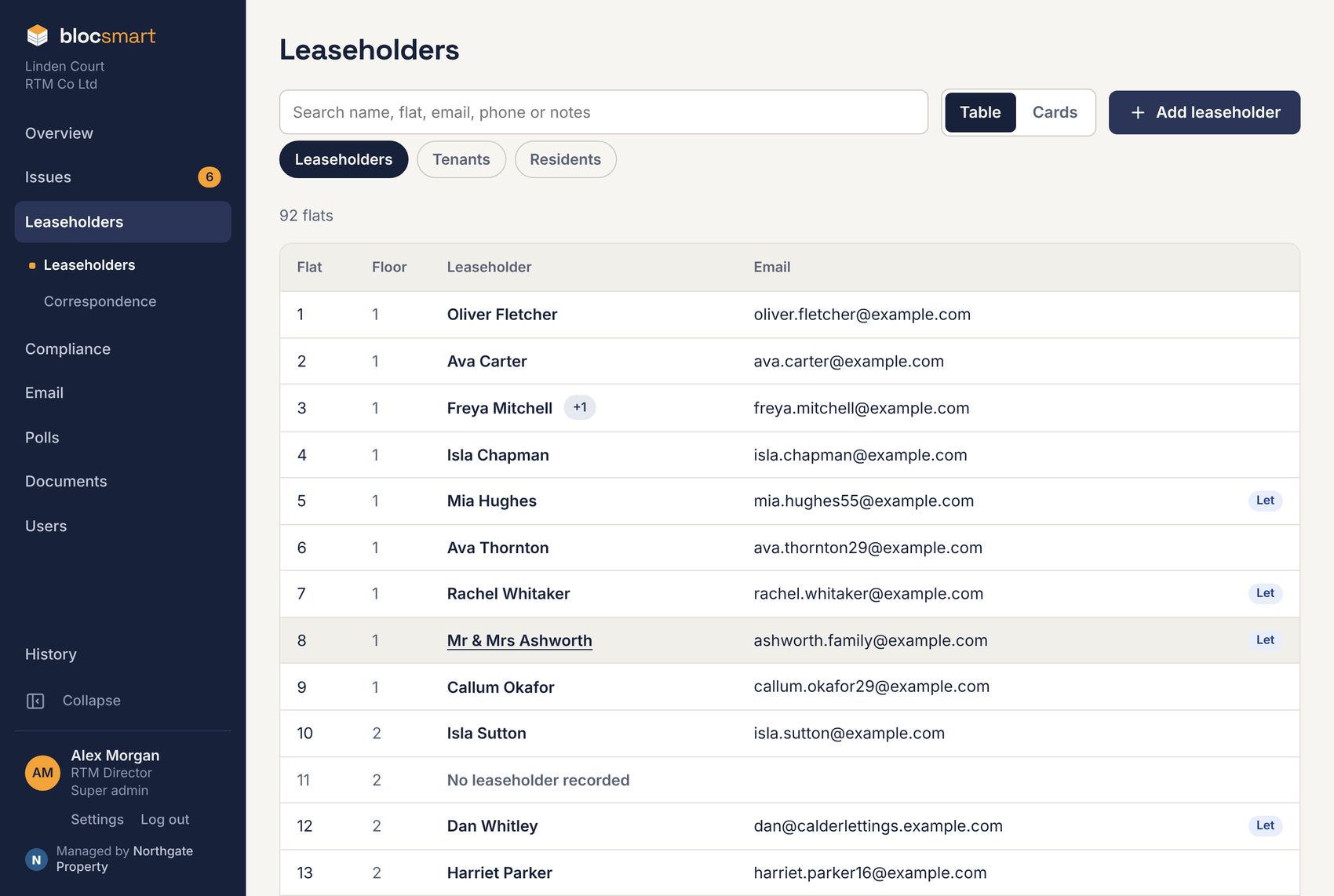
- Search: type in the box at the top to find a flat by name, company, flat number, floor (for example “12th floor”), email, phone or notes. Searching also finds tenants.
- Table or Cards: switch views with the buttons next to the search box. blocsmart remembers your choice.
- +1 next to a name means the flat has more than one current leaseholder (or tenant).
- A Let tag means the flat has a current tenant.
- Email warnings such as Bounced or Unsubscribed appear next to anyone whose email address has a problem (see A person’s email status).

Leaseholders, Tenants and Residents
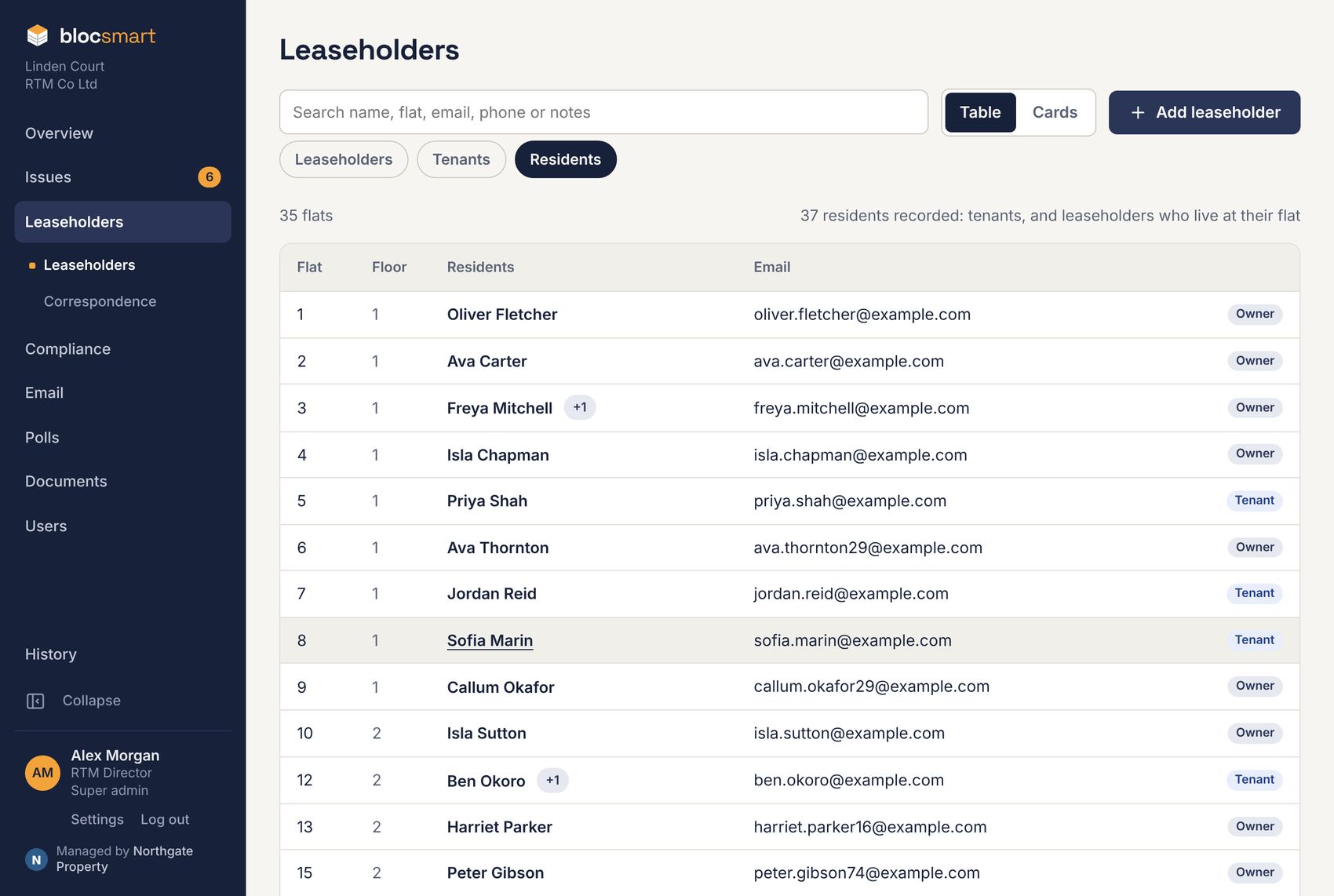
The three buttons under the search box change who’s listed:
| Button | Lists |
|---|---|
| Leaseholders | Every flat with its current leaseholders. This is the default. |
| Tenants | Only flats with a current tenant, showing the tenants. |
| Residents | Only flats where we know who lives there: the tenants, and leaseholders recorded as living at their flat. Each is tagged Tenant or Owner. |
The flat page
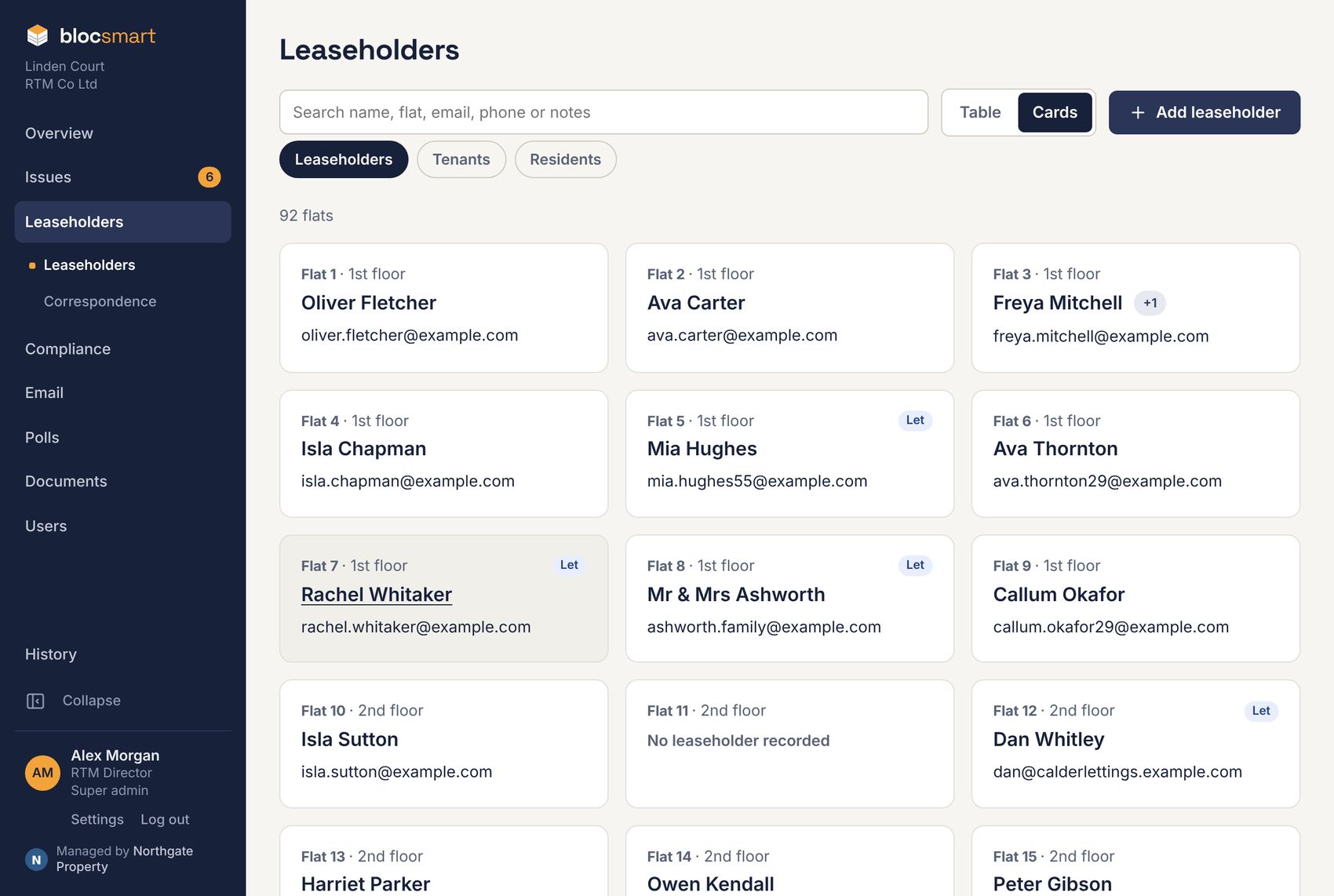
A flat’s page brings together everything about it. Its number, floor and tags are at the top: Let or Owner-occupied, and Protected or Not protected under the Building Safety Act (see BSA 2022 leaseholder protections).
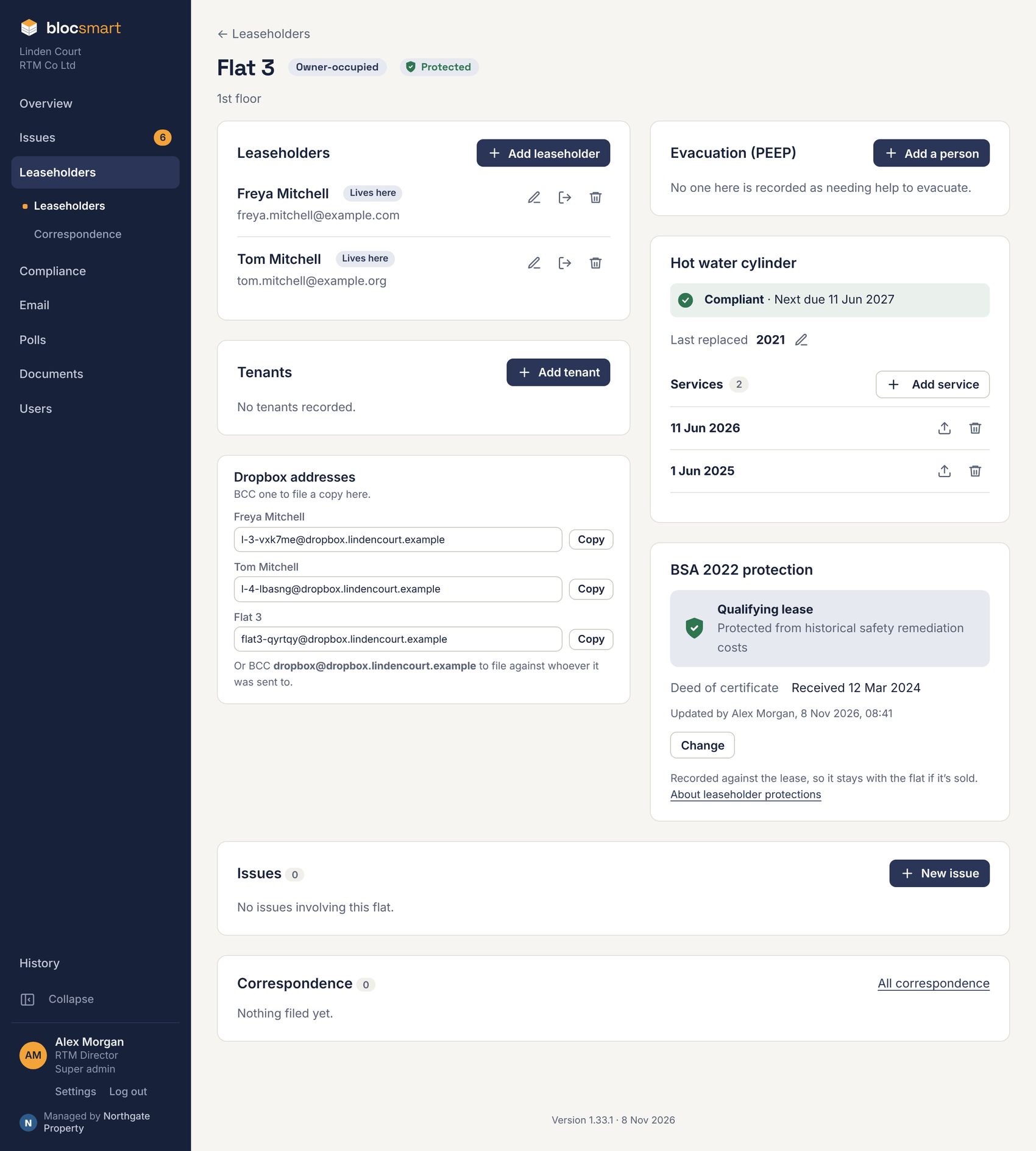
| Panel | What it holds | See |
|---|---|---|
| Leaseholders | Current and former leaseholders. | Adding a leaseholder |
| Tenants | Current and former tenants. | Tenants |
| Dropbox addresses | Email addresses to BCC so emails are filed against the flat. | How the dropbox works |
| Evacuation (PEEP) | Anyone at the flat who may need help to evacuate. | Recording a person |
| Hot water cylinder | Service status, replacement date and services with certificates. | Service status |
| BSA 2022 protection | Whether the lease qualifies for the leaseholder protections, and the deed of certificate. | Recording a flat’s protection |
| Issues | Issues about the flat or reported by its residents. | Creating an issue |
| Correspondence | Emails filed against the flat or its people. | The Correspondence page |
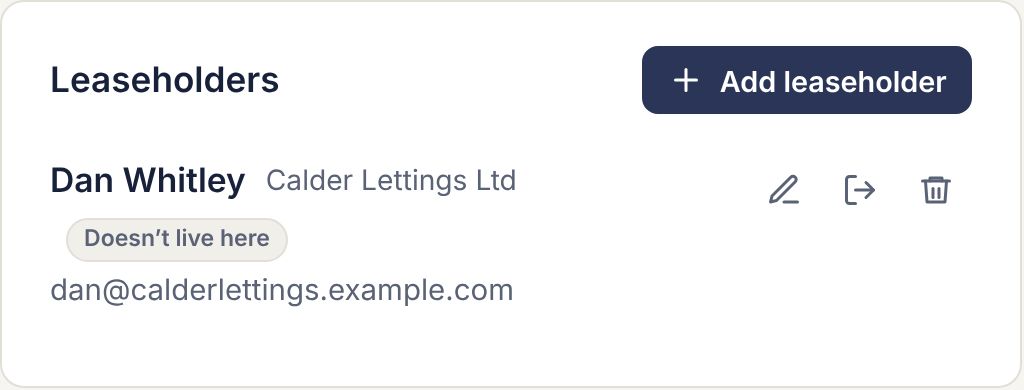
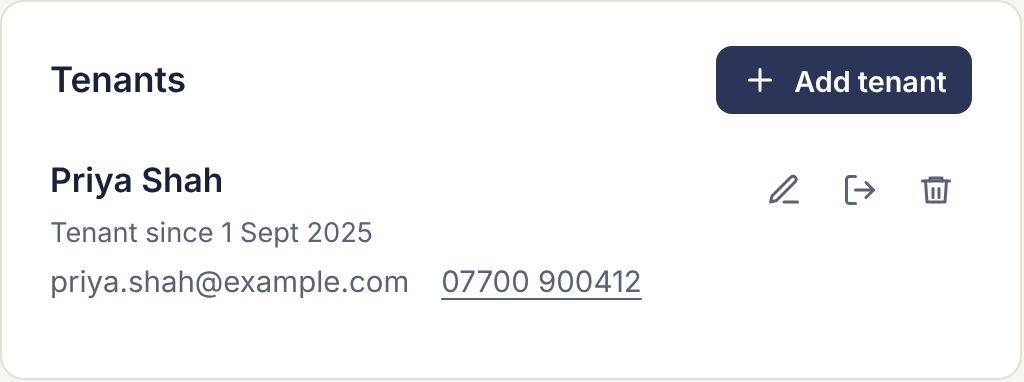
Each person has three buttons on the right: the pencil edits them, the arrow out of a door records them as moved out, and the bin deletes the record.

Adding a leaseholder
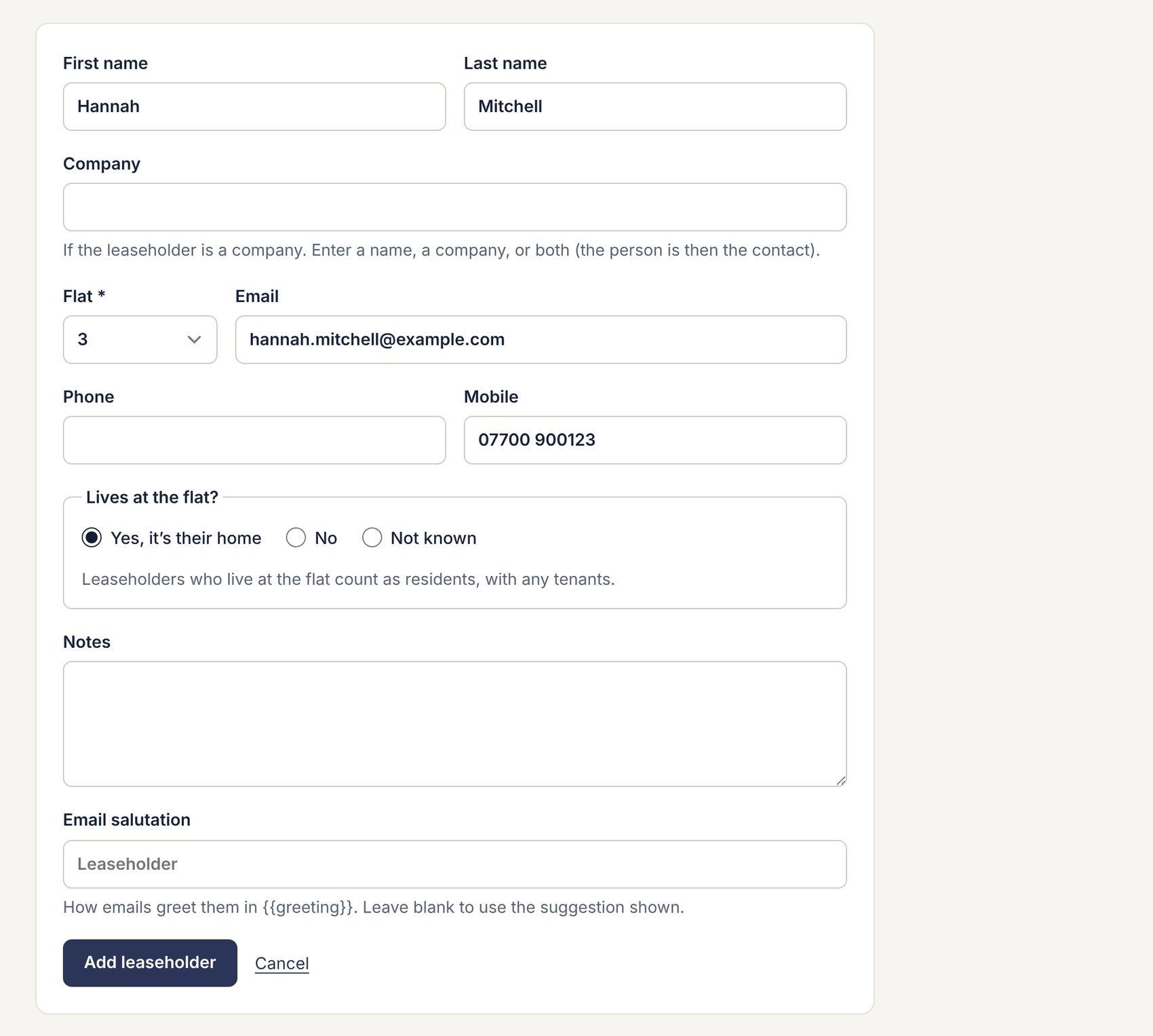
- Open the flat and press Add leaseholder. (You can also press Add leaseholder at the top of the list and choose the flat.)
- Fill in their first and last name and as much contact detail as you have: email, phone, mobile and notes.
- If the leaseholder is a company, fill in Company. You can enter a person’s name, a company, or both (the person is then the contact).
- Under Lives at the flat?, choose Yes, it’s their home, No or Not known. Leaseholders who live at the flat count as residents.
- Leave Email salutation blank unless you want to change how emails greet them (see Editing a leaseholder).
- Press Add leaseholder.
Editing a leaseholder
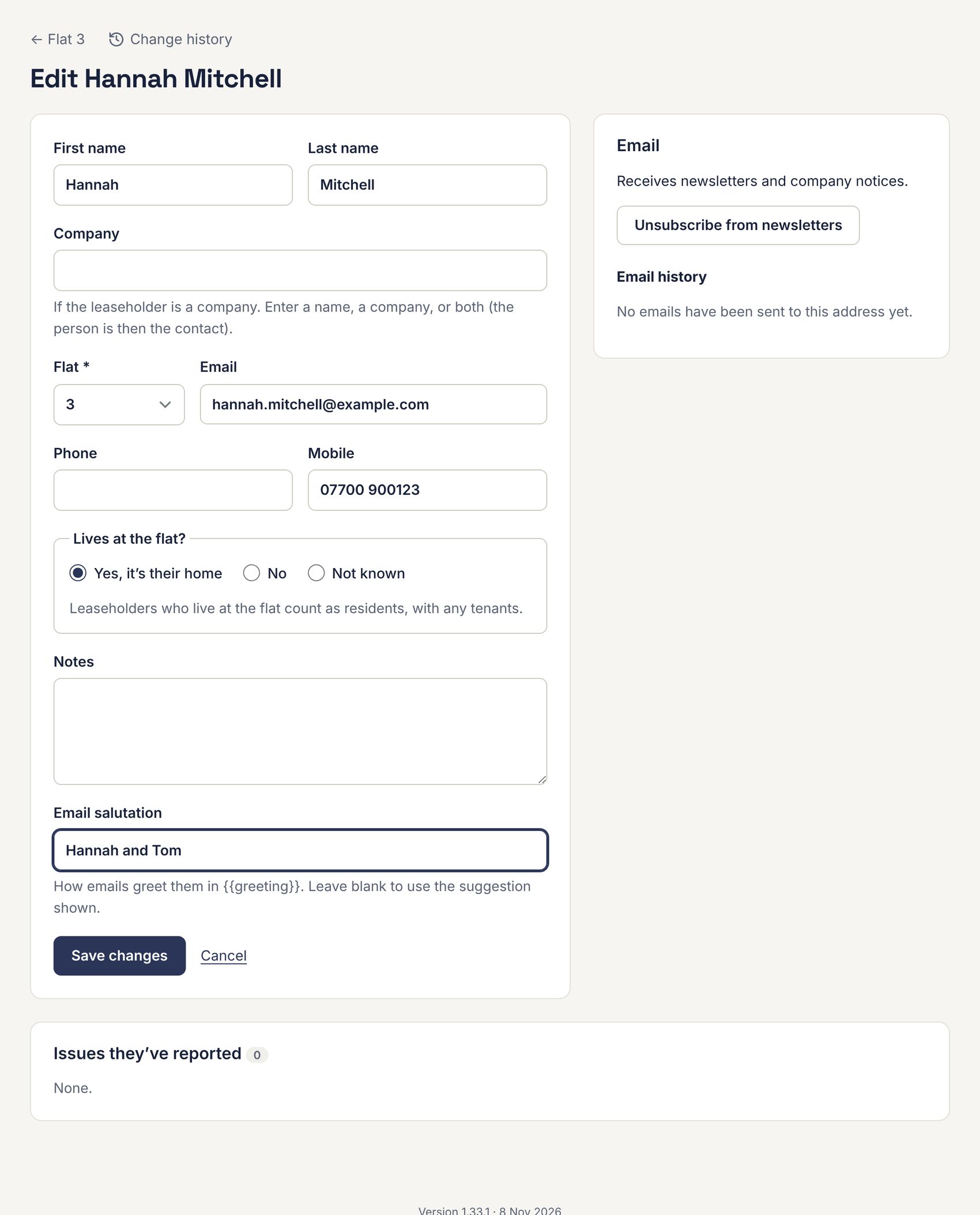
- On the flat page, press the pencil next to their name (or click their name).
- Change any details. To move them to a different flat, change Flat.
- Press Save changes.
Email salutation
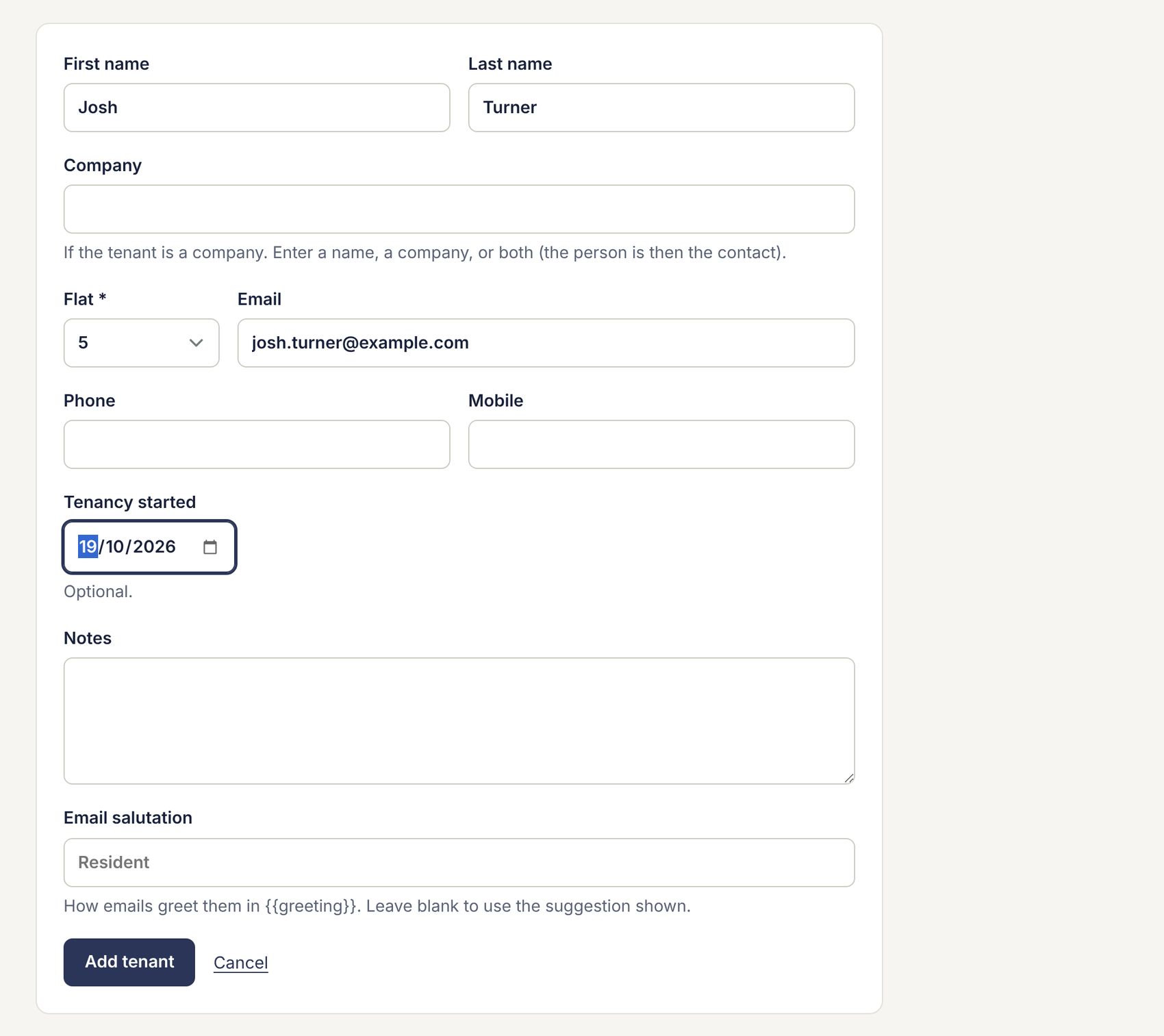
Emails start “Dear …”. blocsmart suggests a greeting from the name (shown faintly in the box): usually the first name, the full name for titles like “Mr & Mrs Ashworth”, or the company’s name for a company with no person named. To use something else, such as “Hannah and Tom” or “Dr Patel”, type it into Email salutation.
Every change is recorded in the change history with the old and new values, so it can be undone (see Record changes and undo). Press Change history at the top of the edit page to see this person’s changes.
Joint and company leaseholders
When a flat has joint leaseholders with their own email addresses, add each as a separate leaseholder on the same flat. Each then gets their own copy of every email, and you can record one as moved out without affecting the other.
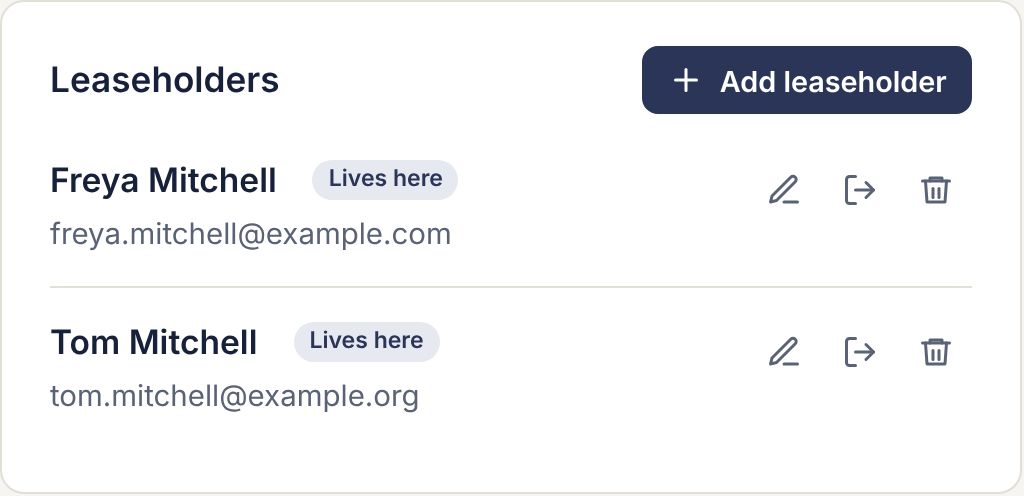
A company leaseholder shows the contact’s name with the company beside it. Emails greet the person; with no person named, they greet the company.
Moved out and deleting
When a flat is sold, record the old leaseholder as moved out rather than deleting them. They come off the list and stop receiving emails, reminders and poll ballots, but stay on the flat’s page under Former leaseholders.
- On the flat page, press the arrow out of a door next to their name.
- Check the date they moved out (it defaults to today) and press Record as moved out.
- Add the new leaseholder (see Adding a leaseholder).
If you made a mistake, press Make current next to a former leaseholder to bring them back.
Only delete a record that shouldn’t exist at all, such as a duplicate. Press the bin, read the confirmation and press Delete. A copy is kept in the change history, so it can be restored with Undo (see Record changes and undo).
Tenants
Each flat’s page has a Tenants panel under Leaseholders. A flat with a current tenant is tagged Let.
- On the flat page, press Add tenant.
- Fill in their name and contact details. Tenancy started is optional.
- Press Add tenant.
Edit, record as moved out (they move to Former tenants) or delete a tenant with the same three buttons as a leaseholder. Changes are kept in the change history.
| Tenants can | Tenants don’t |
|---|---|
| Be emailed, when you choose Leaseholders and tenants or Residents only (see Sending). | Get newsletters or notices sent only to leaseholders (the default). |
| Report issues through the report page (see How residents report issues), and be picked as reporters. | Get service reminders. |
| Have their own dropbox address (see How the dropbox works). | Vote in polls. |