Help › Emails to leaseholders
Emails to leaseholders
Email sends newsletters and company notices using a drag-and-drop email designer, and shows who received and opened each one.
Newsletters and company notices
| Type | Who receives it | Use it for |
|---|---|---|
| Newsletter | Everyone chosen, except people who have unsubscribed. Must include an unsubscribe link. | News, building updates, general information. |
| Company notice | Everyone chosen, including people who have unsubscribed from newsletters. | Official matters: AGMs, service charges, legal notices. |
Joint leaseholders each get their own copy. A person with more than one flat gets one copy listing all their flats. Addresses that have bounced or reported spam are never emailed (see A person’s email status).
Templates
A template is a starting layout (header, footer, branding) that new emails copy. Changing a template doesn’t change emails already made from it.
- Go to Email › Templates.
- Type a name under New template name and press Create and open editor.
- Design the template (see Designing the email) and press Save.
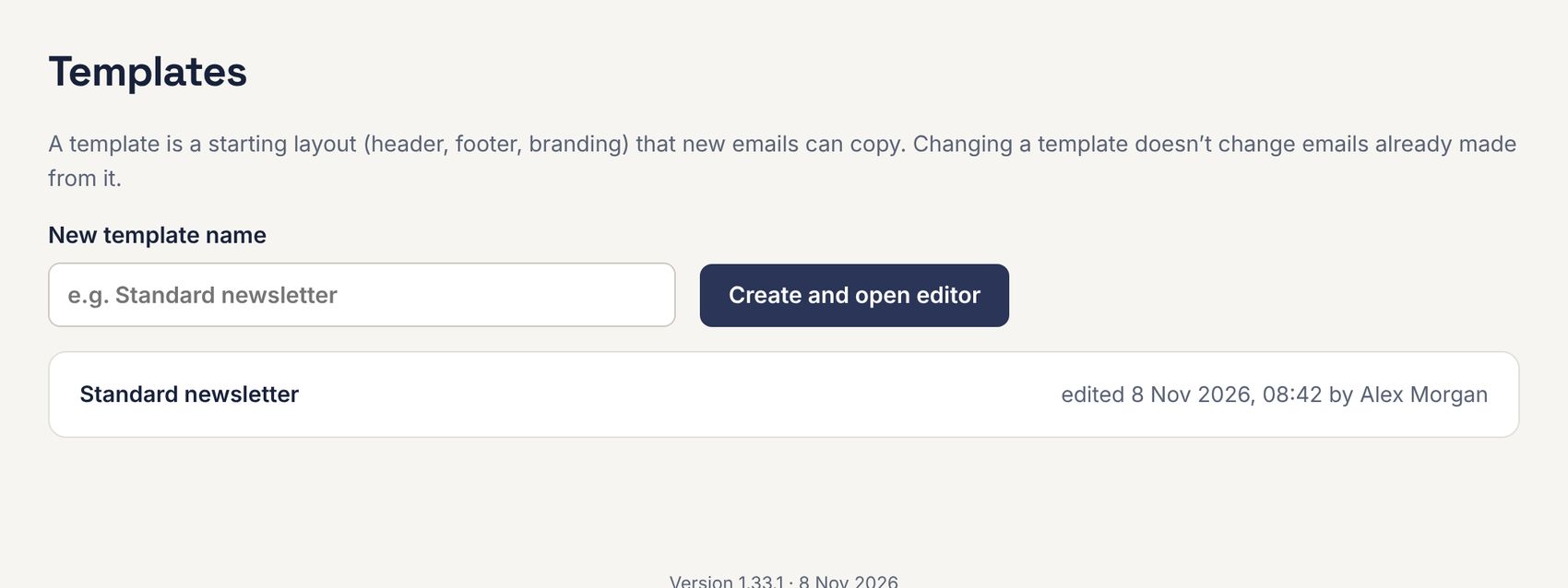
Click a template to edit, preview, rename or delete it.
Creating an email
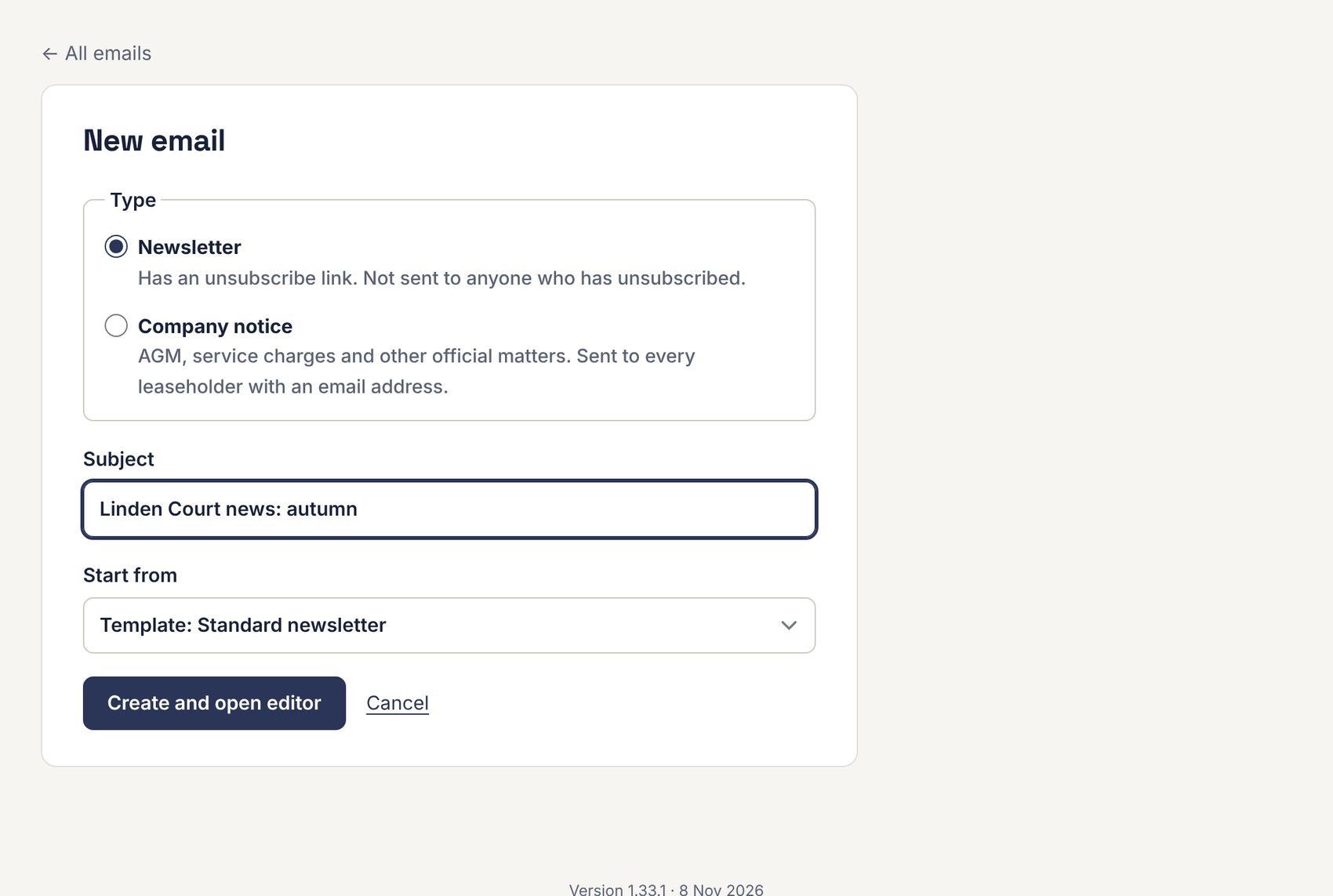
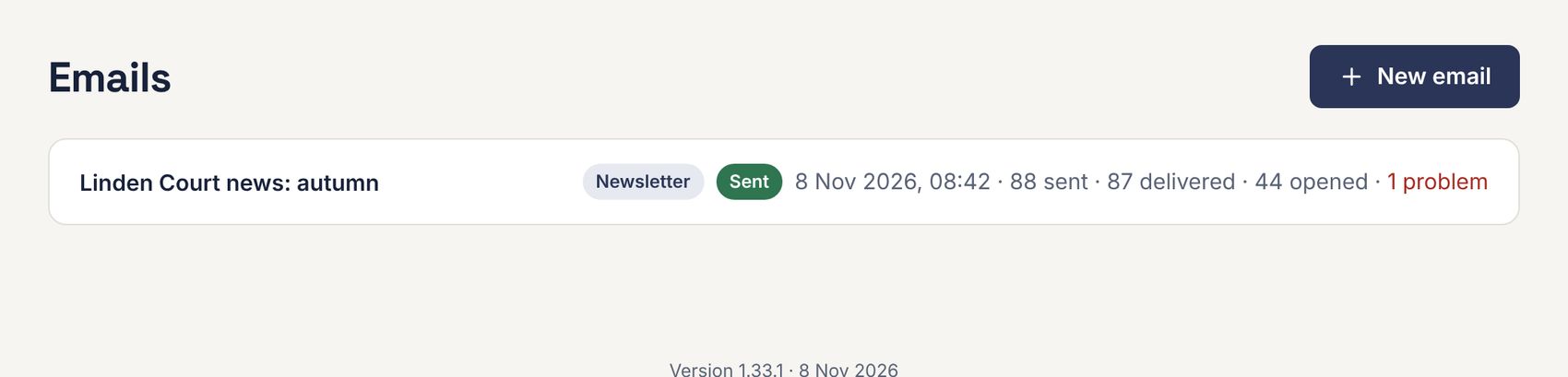
- Go to Email › Emails and press New email.
- Choose Newsletter or Company notice and type the Subject.
- Under Start from, choose a template (or a blank email).
- Press Create and open editor. The email is saved as a draft.
Designing the email
The editor opens full screen. Drag content blocks (text, images, buttons, dividers) into the email, and click any block to change it. Preview on desktop and mobile with the device buttons.

- Make your changes.
- Press Save (top right). “Saved” and the time appear.
- Press ← Back to return to the email’s page.
Save before leaving the editor. If you try to leave with unsaved changes, your browser asks you to confirm. The editor loads from Unlayer, an outside service, so it needs an internet connection and works best on a computer.
Merge tags
Merge tags in double curly brackets are replaced for each recipient. Use them anywhere in the text or subject. The full list is under Merge tags you can use on the email’s page.
| Merge tag | Becomes |
|---|---|
{{greeting}} | How they’re greeted, for example “Hannah” (see Editing a leaseholder). Use it as “Dear {{greeting}},”. |
{{first_name}}, {{last_name}}, {{full_name}} | Their name. |
{{company}} | Their company, if any. |
{{flat_no}} | Their flat number(s). |
{{email}} | Their email address. |
{{unsubscribe_url}} | Their personal unsubscribe link. Newsletters must include it: link some footer text to {{unsubscribe_url}}. |
Attachments, preview and test
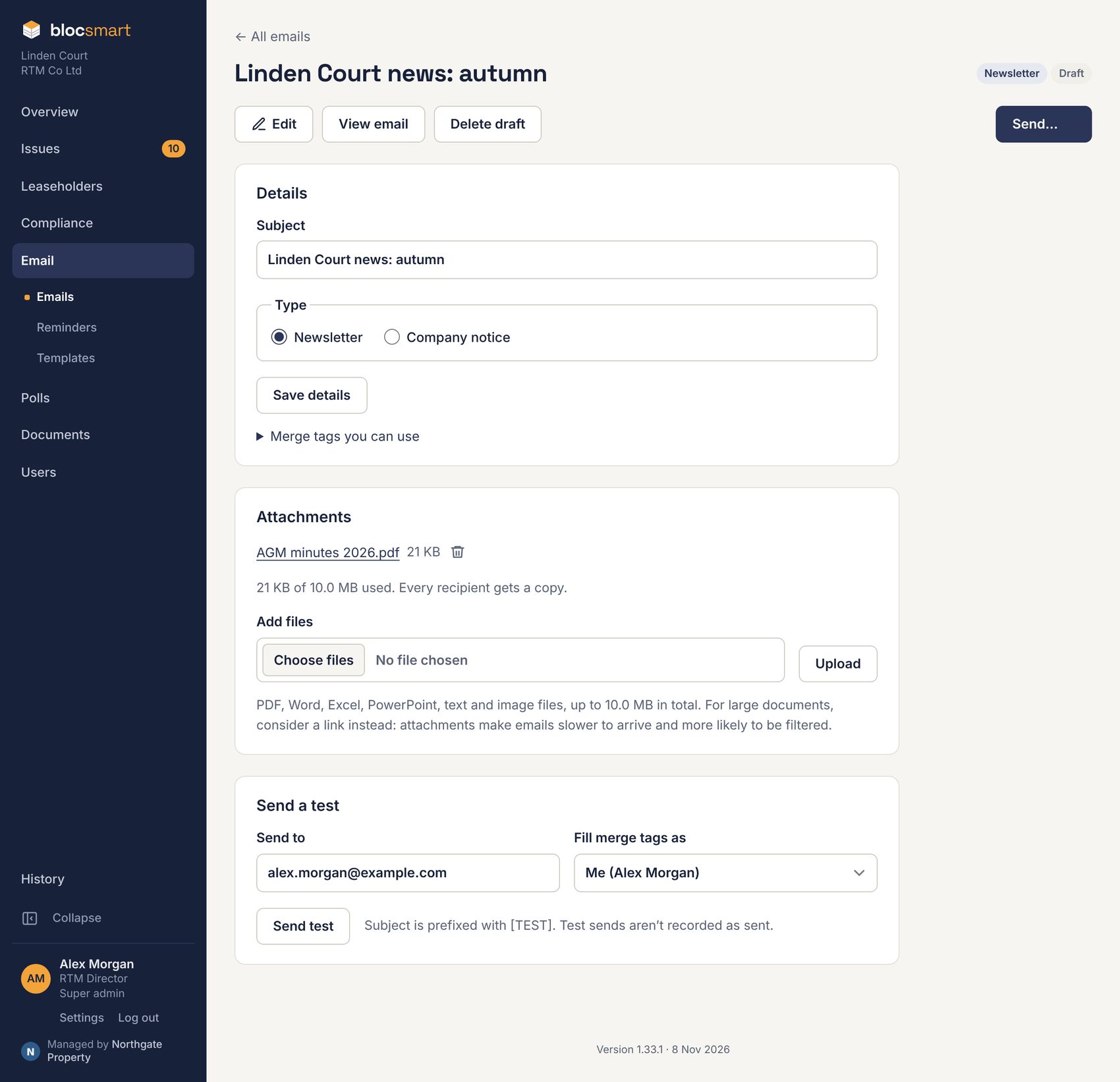
- Attachments: press Choose files, pick one or more, and press Upload. PDF, Word, Excel, PowerPoint, text and image files, up to 10 MB in total. Every recipient gets a copy.
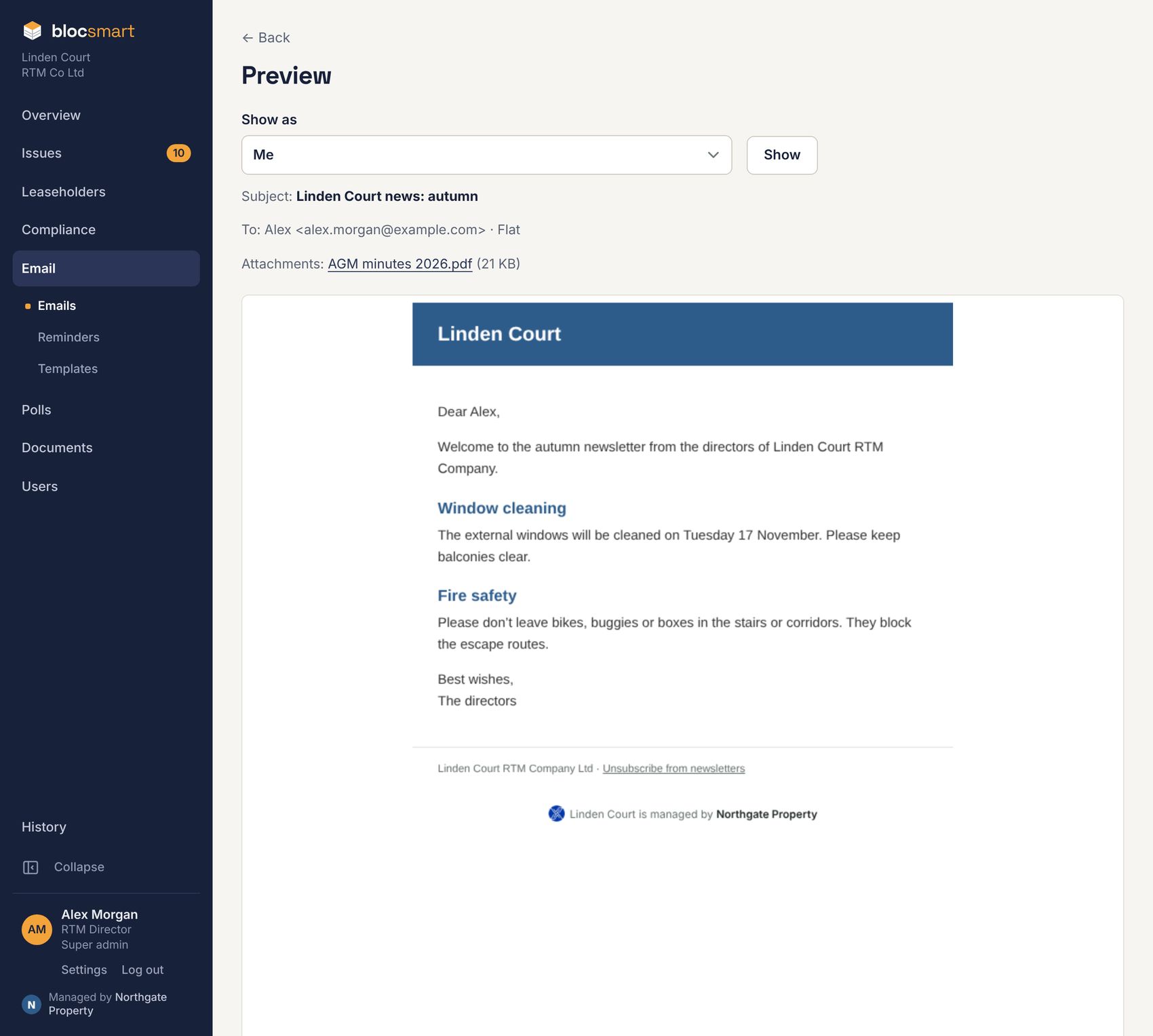
- View email previews it. Choose a leaseholder under Show as and press Show to see their merge tags filled in.
- Send a test: check the address (yours by default), optionally choose a leaseholder under Fill merge tags as, and press Send test. The subject starts with [TEST]; test sends aren’t recorded as sent.
Large attachments make emails slower to arrive and more likely to be filtered as spam. For big documents, upload them to Documents and send a link instead.
Sending
- On the email’s page, press Send….
- Under Send to, choose Leaseholders (the default), Leaseholders and tenants (for example for building works or fire safety), or Residents only (tenants, and leaseholders who live at their flat). Each shows how many addresses it reaches.
- Open Recipients to check the list and greetings.
- Tick I’ve sent myself a test and checked it. and press Send to … now.
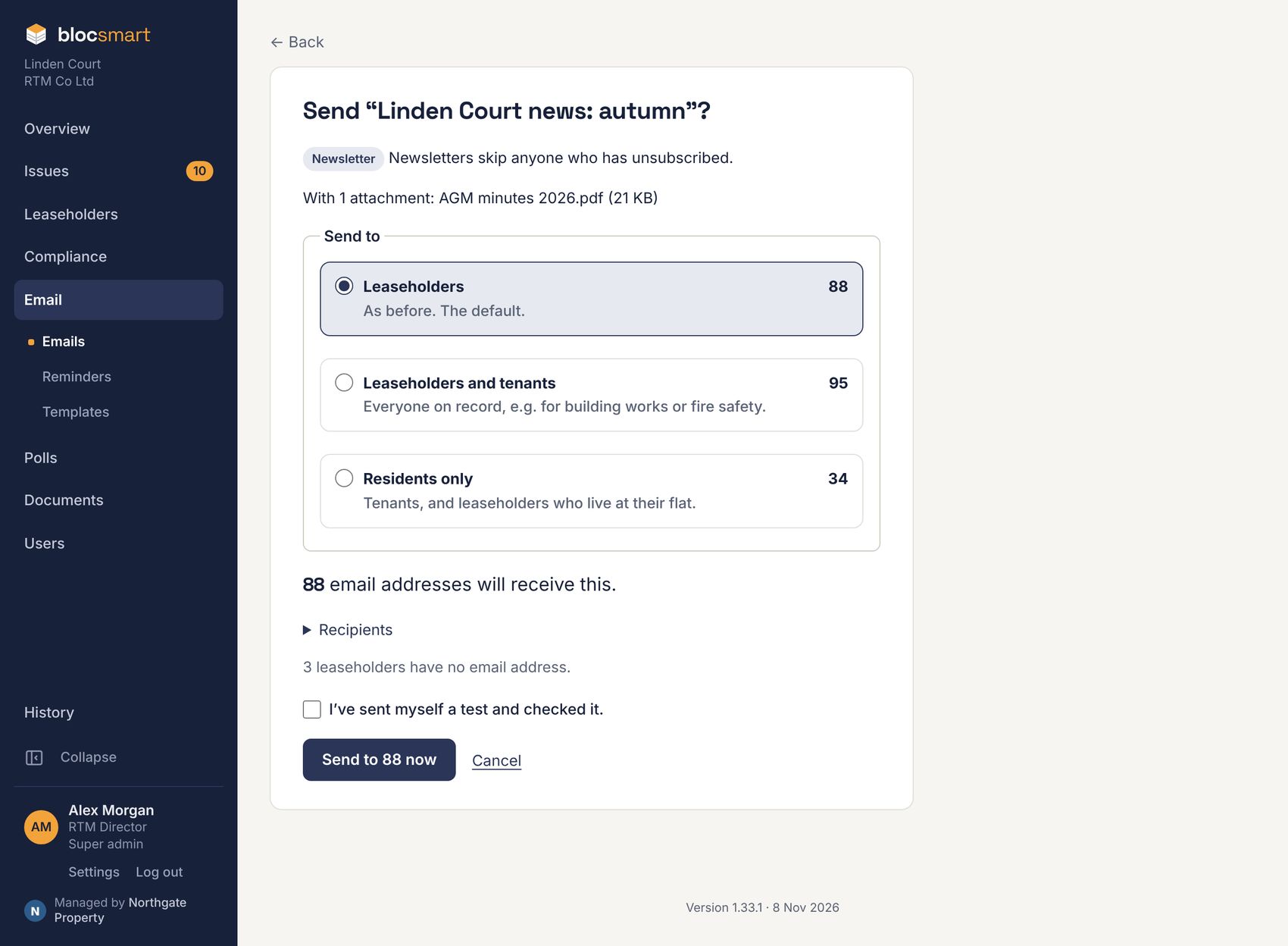
Once sent, an email can’t be changed or recalled. Problems such as a missing subject, an unknown merge tag, or a newsletter without an unsubscribe link are listed on the email’s page and must be fixed before you can send.
Reading the results
After sending, the email’s page shows how it did. Figures update over the following hours and days.
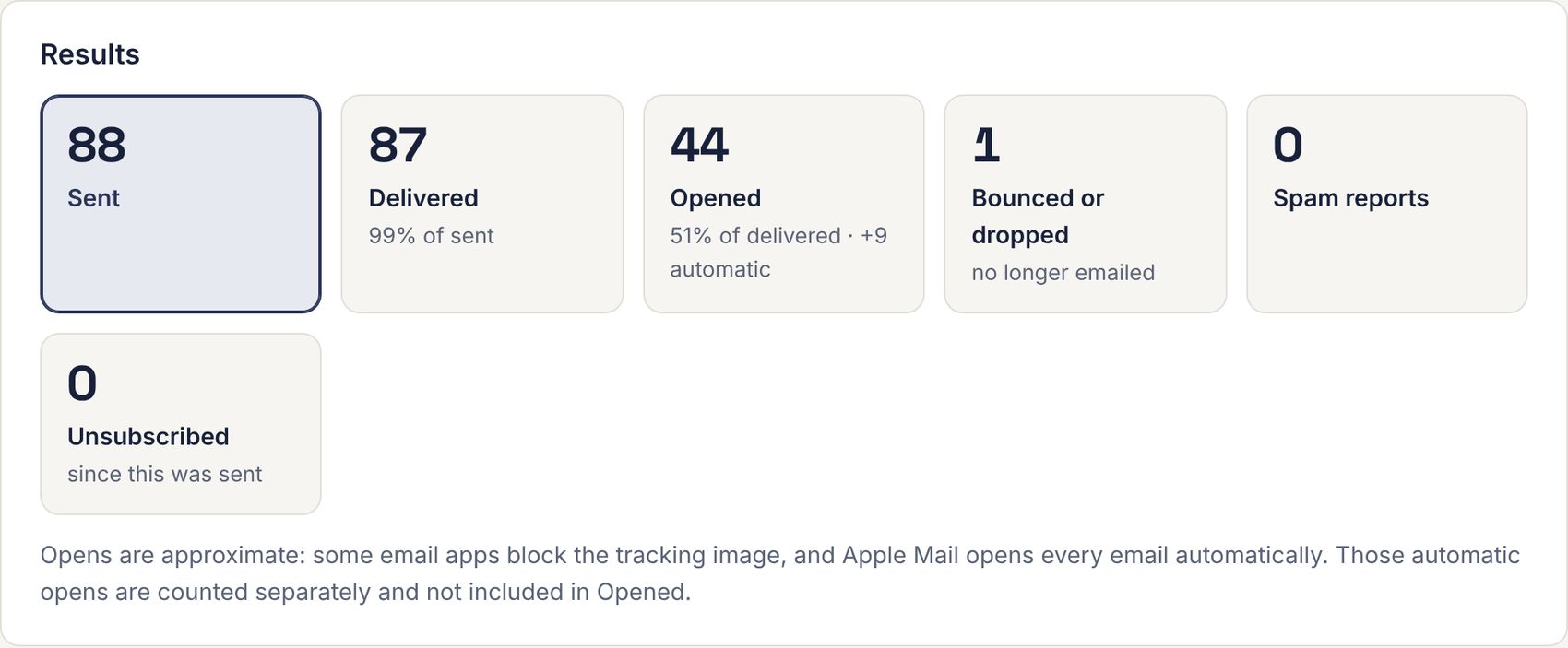
| Tile | Meaning |
|---|---|
| Sent | Accepted for delivery. |
| Delivered | Reached the recipient’s email provider. |
| Opened | Opened at least once. Approximate: some email apps block the tracking image, and Apple Mail opens every email automatically; those automatic opens are counted separately. |
| Bounced or dropped | Couldn’t be delivered, usually because the address no longer exists. Not emailed again. |
| Spam reports | Marked as spam. Not emailed again. |
| Unsubscribed | Newsletters only: people who unsubscribed since this email. |
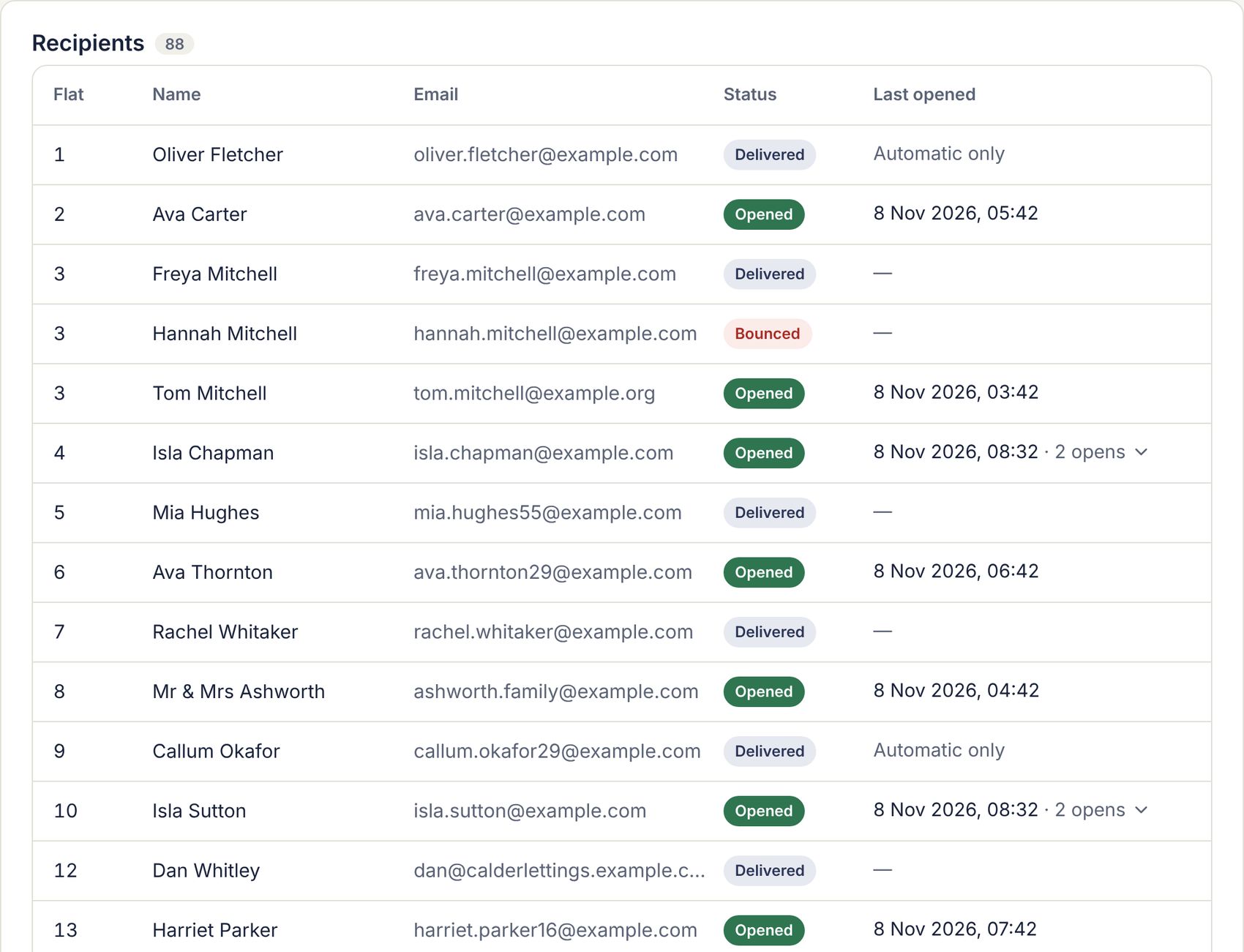
Click a tile to filter the recipients list. Each recipient shows a status and when they last opened it; click the number of opens to see each one.
A person’s email status
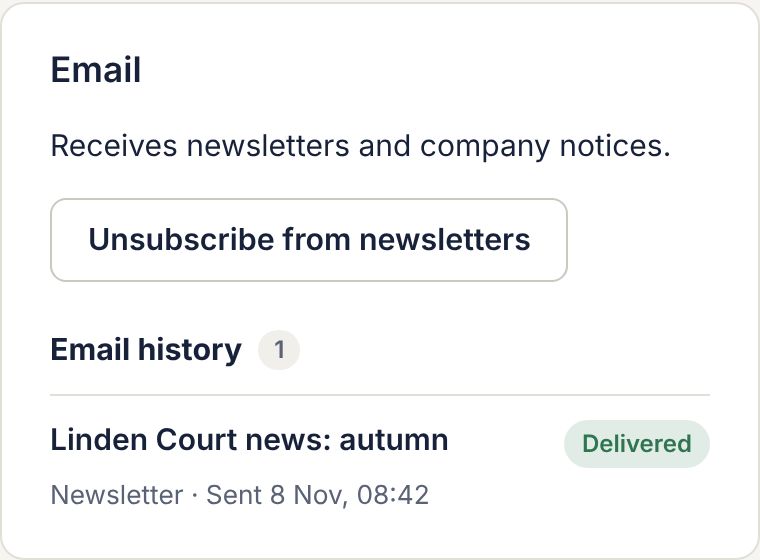
Each leaseholder’s and tenant’s edit page has an Email panel showing whether they receive emails and every email sent to them, with whether it was delivered and opened.
| Button | Use it when |
|---|---|
| Unsubscribe from newsletters | They ask to stop getting newsletters. They still get company notices and service reminders. |
| Re-subscribe to newsletters | They ask to get newsletters again. |
| Clear block and allow email again | Their address bounced or reported spam, and you know it now works. |